
Portfolio Level Fields
To modify Portfolio Level Field, follow the below steps:
1. Navigate to Fin/KPI tab and click on Financial – Portfolio Level Fields.
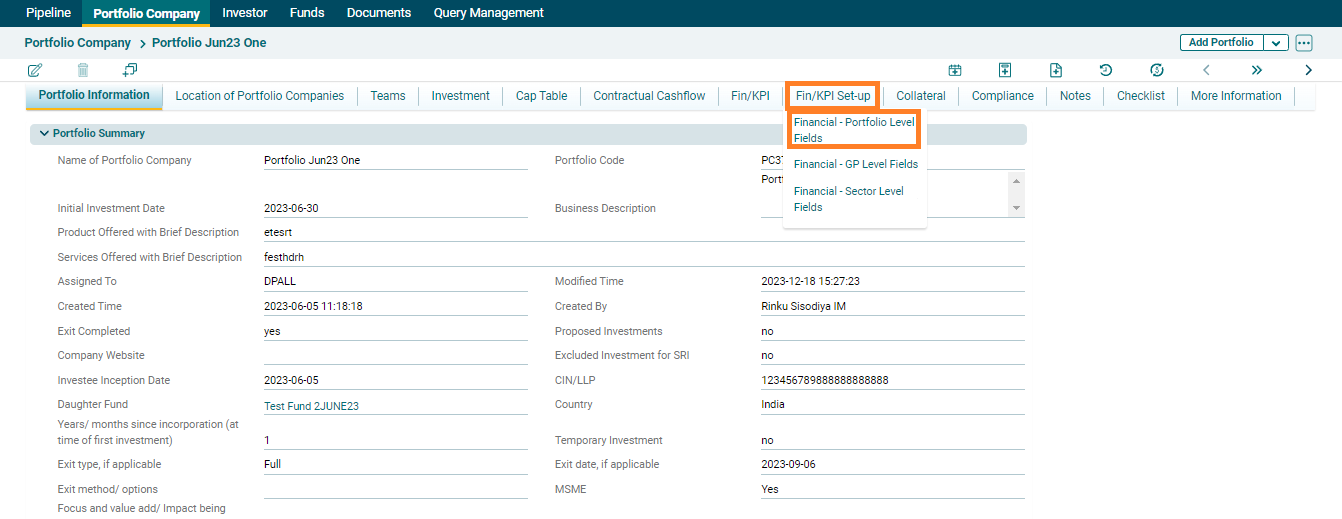
2. Click on Add Field button in the top right corner of the panel.

3. The field will be activated. Enter the following details:
- Field Name: To specify name of the field.
- Field Type: To specify the field type, i.e. Income Statement, Cashflow Statement, Balance Sheet, KPI, or ESG.
- Calculated: To specify if it is to be calculated or not. If you check the box, The Resultant field will auto select CALC value.
- Formula: To add a formula for any calculated field, you must copy the exact name of already existing fields and use the mathematical operators like +,-,* etc. There should not be any space between the values.
- Ordering: To specify the ordering.
- Indentation: To specify the indentation, 0, 1, and 2.
- Resultant: To specify the operation, i.e. Sum, Average, CALC, Last Value, and First Value.
- Data Type: To specify the data type, i.e. Currency, Non-Currency, or Percentage.
- Include In Report: To specify whether the financials are to be included in report or not.
- Field Applicable To: To specify to whom the field is applicable. As you click on the Field Applicable To button, a window will be displayed where you can check or uncheck the options.
4. Click Check ( ) button to save the details.

5. To edit a field, click on Edit ( ) icon in the Actions column. Edit the details and click on Check (
 ) button to save.
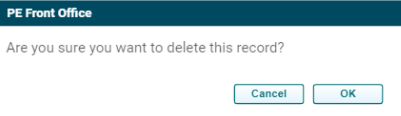
6. To delete a field, click on Delete ( ) icon in the Actions column. The delete window is displayed. Click OK to delete the field.
7. After you add a field or edit it by using a formula, click on Recalculate ( ) button in the top horizontal bar of the panel. It will recalculate the value of fields and display them in Financials Tab.
Import Portfolio Level Field
To import portfolio level field, follow the below steps:
1. Click on Generate Portfolio Level Fields Template button in top horizontal bar of the panel. The excel file will download.

2. The excel file will download with data as displayed in Portfolio Level Fields panel.
3. The Master Data Sheet displays the fields required to import the fields.
4. To import Portfolio Level fields, click on the down arrow button next to Add Field button. Click on Import Portfolio Level Fields.

5. Click the Choose File button.
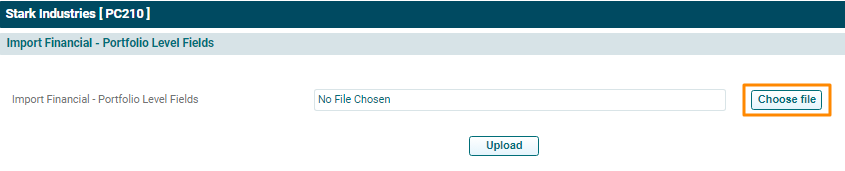
6. Choose the Portfolio Level Field Template. Click Upload.
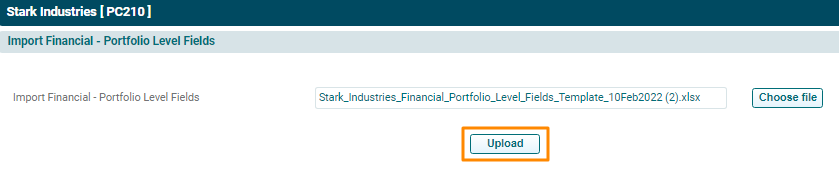
5. The fields will populate based on the uploaded template.
Notes:
(a) No special characters allowed in field name
(b) If a field being used in another field's formula then field being used should have order sequence smaller than the other
(c) Operator in formula should not have space around it
(d) For calculated fields resultant should be CALC