Portfolio Company
Shareholder Management
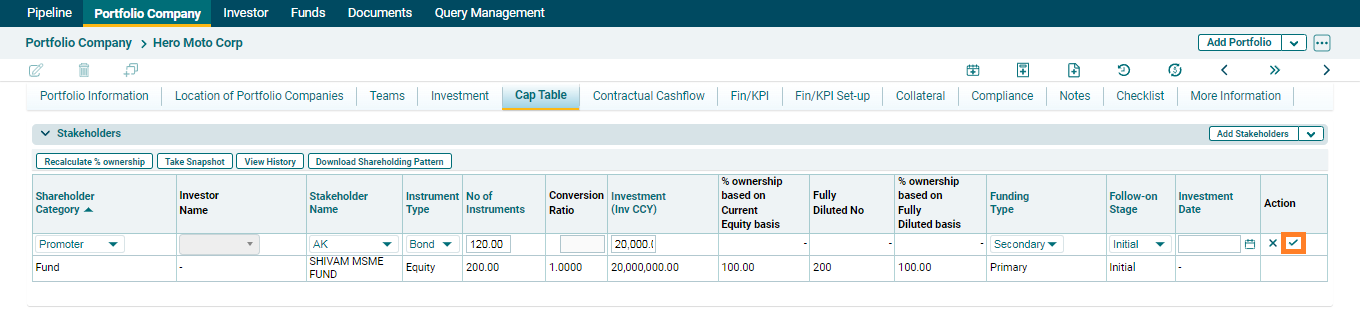
The Cap Table tab records the capitalization table.
To add stakeholders, follow the below steps:
1. Click on the Add Stakeholder button in the top left corner of the panel.
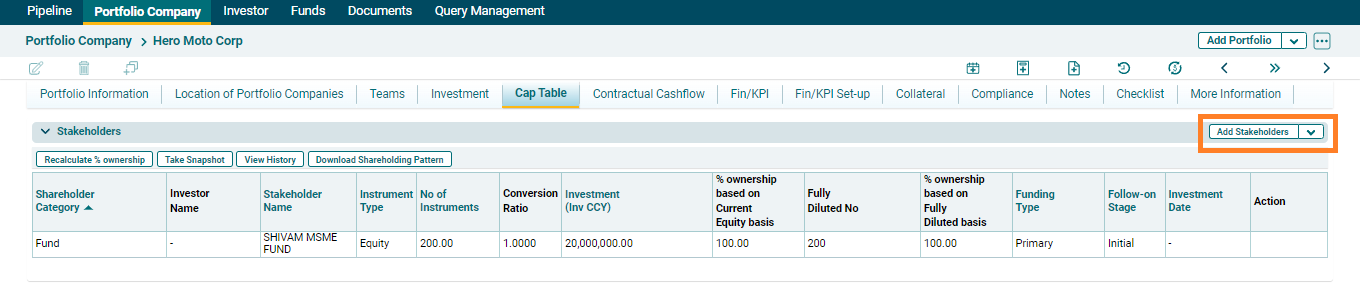
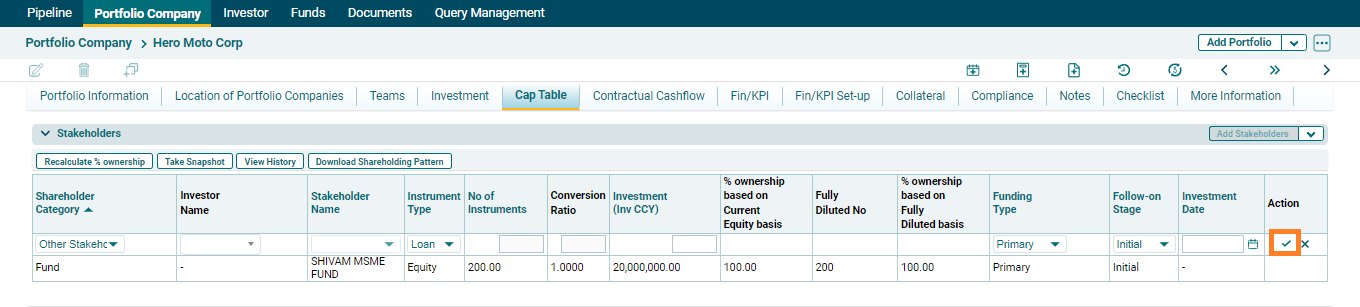
2. Enter the following details:
- Shareholder Category:
Picklist values are Co-Investor, Promoter and Other Stakeholders
- Investor Name
- Stakeholder Name
- Instrument Type: Picklist
values are Loan, Bond, Equity, Options, PS and C-Bond
- Number of Instruments
- Conversion Ratio
- Investment (in Investment
Currency)
- Ownership Percentage
based on Current Equity
- Number of Fully Diluted
shares
- Percentage Ownership
based on Fully Diluted
- Funding Type: Picklist
values are Primary, Secondary and NA
- Follow-on Stage: Picklist
values are Initial, Follow-1, Follow-2, Follow-3, Follow-4, Follow-5 and NA
- Investment Date
3. Click on check
button to save the details.
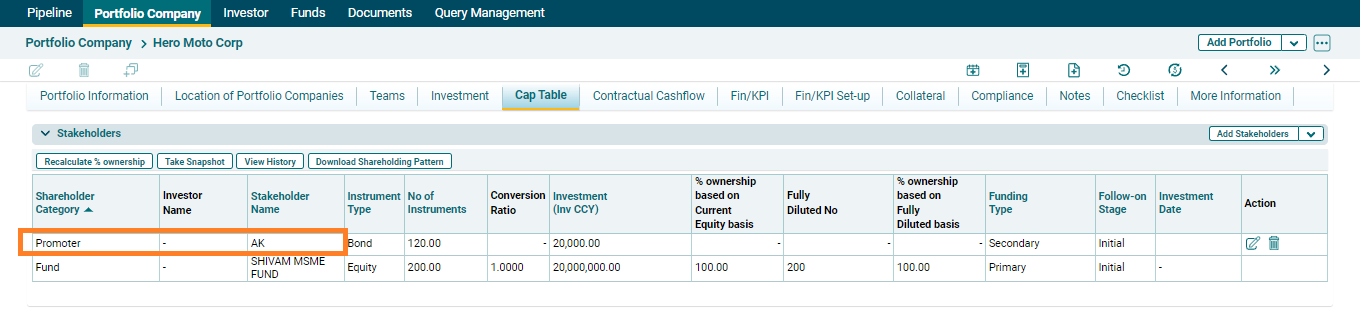
4. The added stakeholder will appear in the Stakeholders tab.
5. To edit stakeholder details, click on the Edit ( ) icon in the Action Column. Edit the details and click check button to Save.
6. To delete stakeholder details, click the Delete ( ) icon
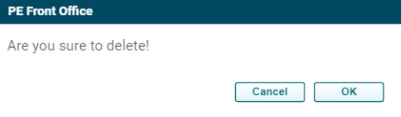
in the Actions column. The delete window is displayed. Click OK to delete the instrument
record.
) icon
in the Actions column. The delete window is displayed. Click OK to delete the instrument
record.
Add Shareholding (Bulk
Upload)
To bulk upload shareholding details, follow the below steps:
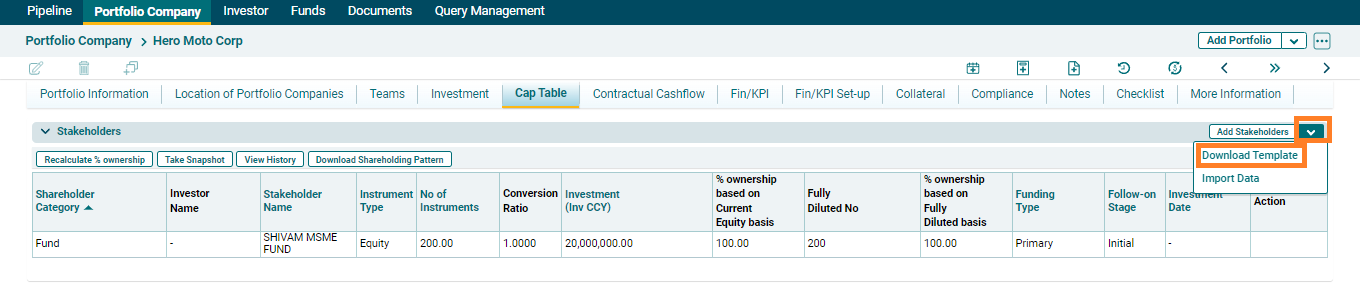
1. Click on the down
arrow button next to Add Stakeholders
button. Click on Download Template.
2. The excel file
will download. Enter the details and save the file.
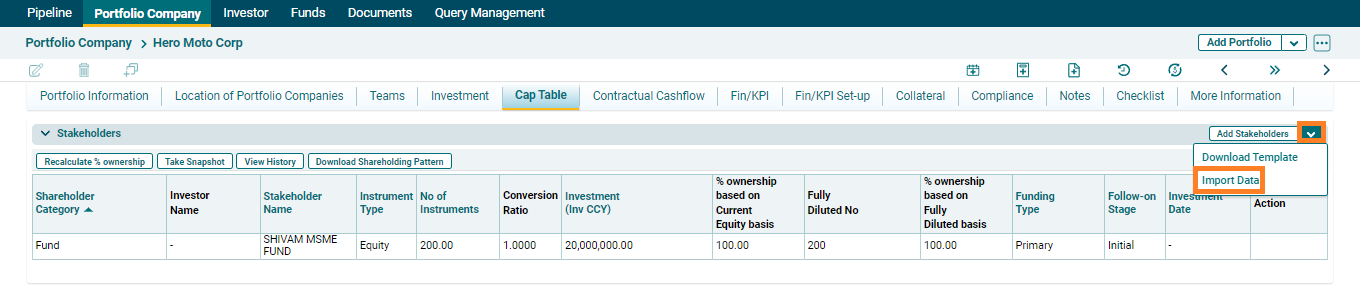
3. To import bulk shareholding details, click on the down arrow button next to Add Stakeholders button. Click on Import Data.
4.Click the Choose File button.
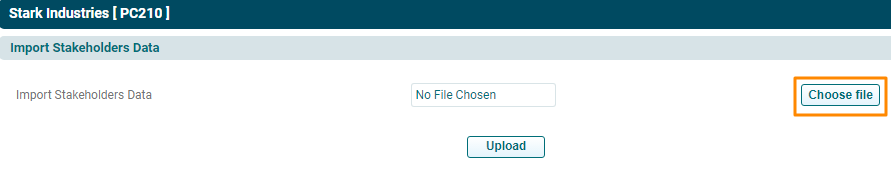
5. Choose the Stakeholding template. Click Upload.

Recalculate %
Ownership
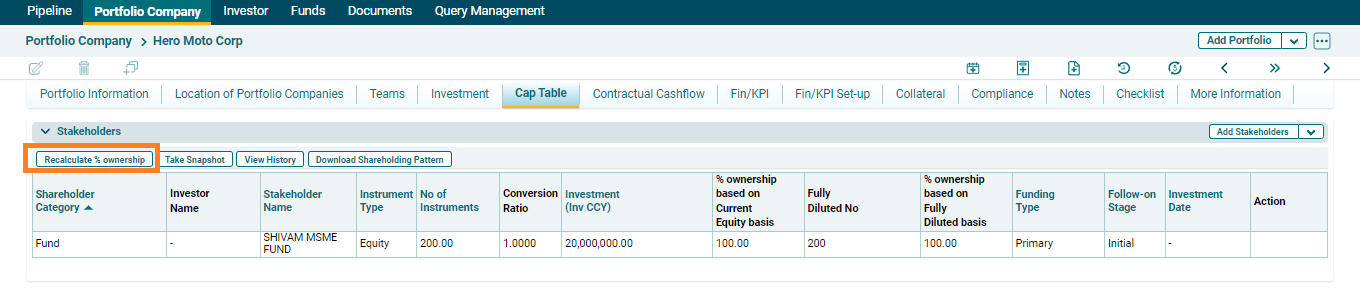
When you edit or add the details for any stakeholder, click on Recalculate % Ownership button in top left corner of the panel to update values of percentage ownership.
Take Snapshot
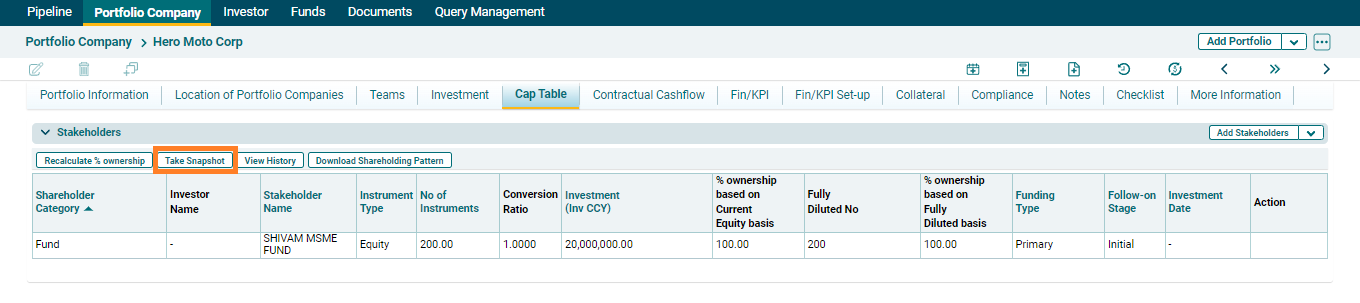
To take a snapshot, click on the below steps:
Click on Take Snapshot button in top horizontal bar of the panel.
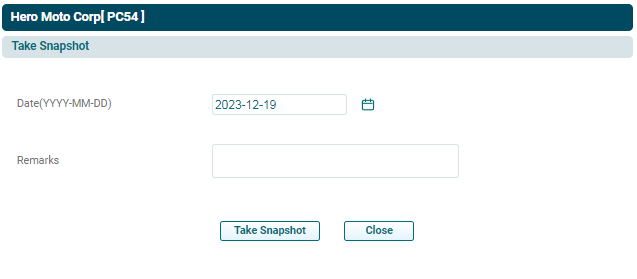
The Take Snapshot window is displayed. Enter the date for taking snapshot on a specified date. Enter remarks, if any. Click Take Snapshot button.
View History
To view and download history of the snapshots taken, follow the below steps:
1. Click on View History
button in top horizontal bar of the panel.
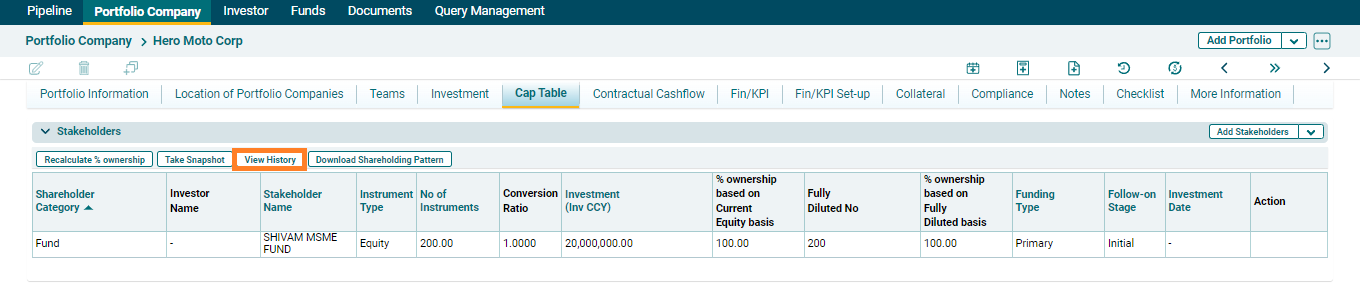
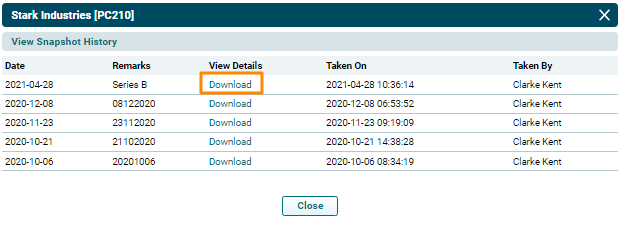
2. The View Snapshot History window is displayed. To download snapshot of a specific date, click on Download button. The excel file will download.