
Users
Users are employees in your organization who can log into their PE Front Office accounts, access information, and perform tasks according to permissions that have been defined to them. In PE Front Office, admin users have the ability to create user accounts. PE Front Office supports two types of users: admin users and standard users.
Add New Users
If you have admin rights, you can add new users. To add new users, follow the below steps:
1. Click on CRM Settings icon ( ) in the top right corner of the panel.
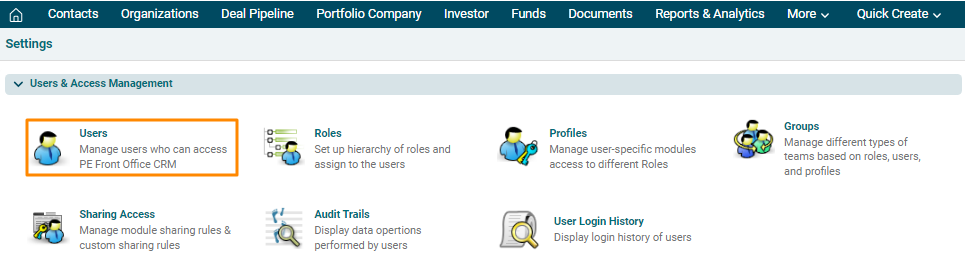
2. In the Users and Access Management panel, click on Users.

3. A list of users will be displayed. Click on New User button in the top right corner of the panel.

4. The Create New User window is displayed. Update the details and click Save.

Edit A User
You can edit user accounts to change their roles and access to PE Front Office. After getting edited, users will be able to access the new features or will be restricted from using the features that were accessible.
To edit a user, follow the below steps:
1. Click on CRM Settings icon ( ) in the top right corner of the panel.
2. In the Users and Access Management panel, click on Users.

3. A list of users will be displayed. Click on Edit ( ) icon in the Actions Column.
4. Update the details and click Save.

Delete A User
You can delete user accounts to terminate their access to PE Front Office. After getting deleted, users will not be able to log into PE Front Office anymore.
To delete a user, follow the below steps:
1. Click on CRM Settings icon () in the top right corner of the panel.
2. In the Users and Access Management panel, click on Users.

3. A list of users will be displayed. Click on Delete ( ) icon in the Actions Column.
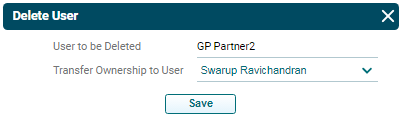
4. You will be prompted to transfer the ownership to another user. Choose a user from the dropdown and click Save.
Duplicate A User
To duplicate a user, follow the below steps:
1. Click on the CRM Settings icon () in the top right corner of the panel.
2. In the Users and Access Management panel, click on Users.
3. A list of users will be displayed. Click on Duplicate ( ) icon in the Actions Column.
4. Update the details and click Save.
