
Portfolio Company
Edit/ Update AS
To edit or update the existing AS, previous versions of AS can be downloaded, changes can be made in excel and excel can be imported again.
View AS History
This
button allows you to access the previous version of AS uploaded by any user and download the excel to view or make changes in the existing AS. To view AS history,
follow the below steps:
1. Select an
instrument from the dropdown list.

2. Click on View AS History button on the
horizontal bar on top of the panel.
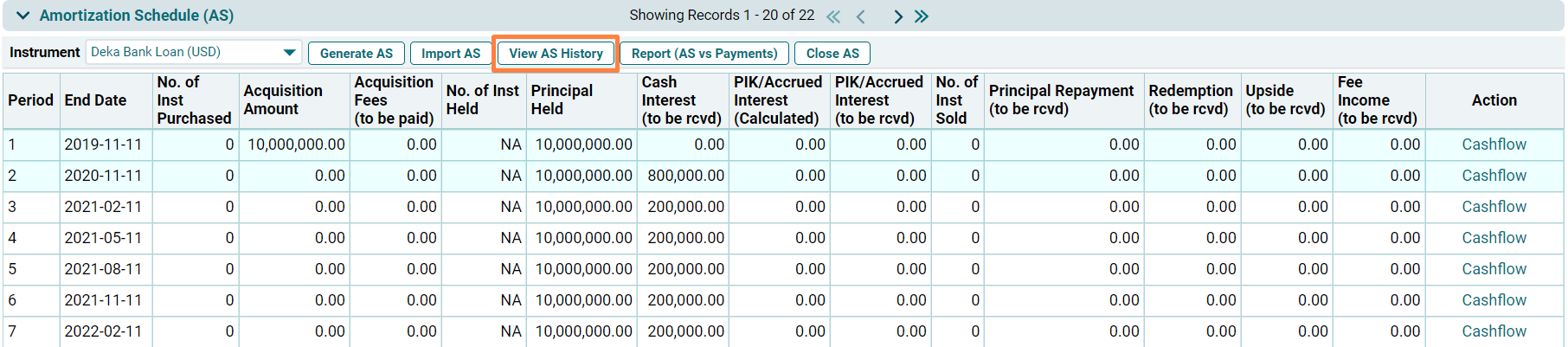
3. View
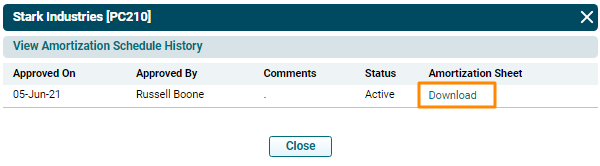
Amortization Schedule History window is displayed. You will see the details
of the last or current AS. Click Download.
The excel file will download.
4. To update the existing AS, make the necessary changes to the downloaded sheet and upload it again through Import AS button.
Close AS
To close
an existing amortization schedule, follow the below steps:
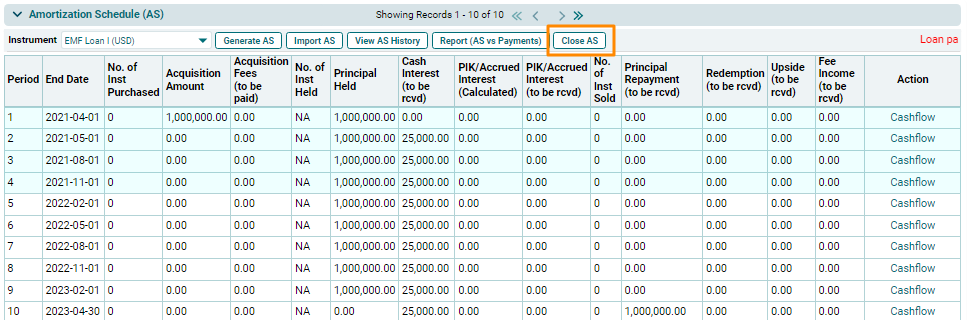
1. Click the Close AS button on the horizontal bar
on top of the panel.
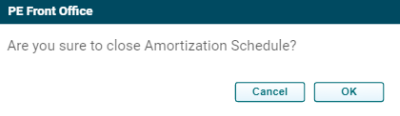
2. A delete
window is displayed. Click OK to
close AS.
3. To update the AS again, generate a new AS, make the necessary changes in excel and upload it again through Import AS button.