
Funds Administration
Fund Cost Setup
Fund Cost panel allows you to capture the details of various expenses of the fund. This panel is applicable to Master Fund, Feeder Fund, Fund SPV, and Fund of Funds. The details included are:
- Date: Displays the date on which the transaction has been entered into.
- Portfolio Company: Displays the portfolio company for which expenses was incurred.
- Investor Type: Displays the investor type.
- Investor: Displays the investor name.
- Transaction Type: Displays the transaction type. Choose the expenses type from the dropdown, i.e., Auditor, Bank Charges, Bank Commitment Fee, etc.
- IRR Calc (Y/N): This is an auto-populated field.
- Transaction CCY: Displays the transaction currency.
- Transaction Amount: Displays the transaction amount.
- Fund CCY Amount: Displays the transaction amount in fund currency.
To add a transaction, follow the below steps:
1. Click on Add Transaction button in the top right corner of the panel.

2. The fields will be activated. Update the details and click Check( ) button from Action column to save the details.

3. To edit cost setup
details, click on the Edit icon ( ) in the Actions column.
Update the details and click on Check (
) in the Actions column.
Update the details and click on Check ( ) button from Actions column to save.
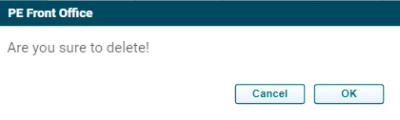
4. To delete fund cost details, click on the Delete icon ( ) in the Actions column. The delete window
is displayed. Click OK to delete the fund cost details.
) in the Actions column. The delete window
is displayed. Click OK to delete the fund cost details.
Filter
To filter fund cost setup for a specific period, specify the dates and click on Filter button on the horizontal bar on top of the panel.

The transactions for the period will be displayed.

Reset
To Reset the filters, click on Reset button on the horizontal bar on top of the panel. The data will be reset.

Fund Cost (Bulk Upload)
To upload Fund cost in bulk, follow the below steps:
1. Click on the down arrow button next to Add Transaction button. Click on Generate Funds Cost Template.

2. A new window is displayed. Choose Blank Template or Automated Template from the dropdown and click Download.
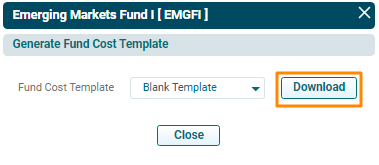
3. The excel file will download. Enter the fund cost details and save the file.
4. Click on the down arrow button next to
Add Transaction button. Click on Import Fund Cost.

5. Click Choose File button.
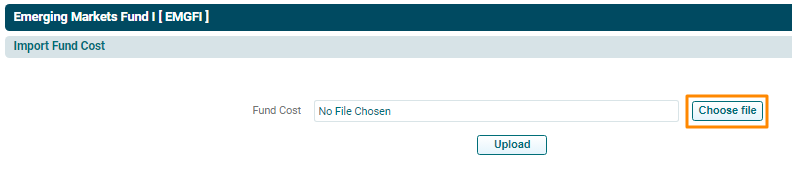
6. Choose the Fund Cost template. Click Upload.
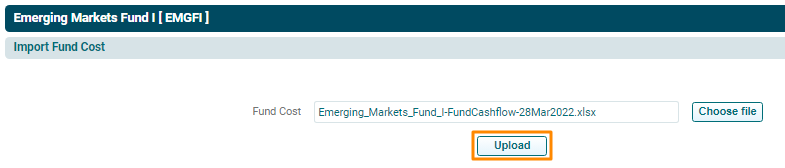
7. The Fund Cost will populate based on the uploaded template.