
Funds Administration
Drawdown Notice Overview
This panel allows you to record the Drawdown Notice sent for initiating drawdown request to the SRI.
To initiate a Drawdown from the SRI fund, follow the below steps:
1. Click on Request Drawdown button in the top right corner of the panel.

2. Drawdown Notice
Overview window is displayed. The basic details are pre-filled in the form. Specify
the date of the Drawdown Notice and purpose of the drawdown.
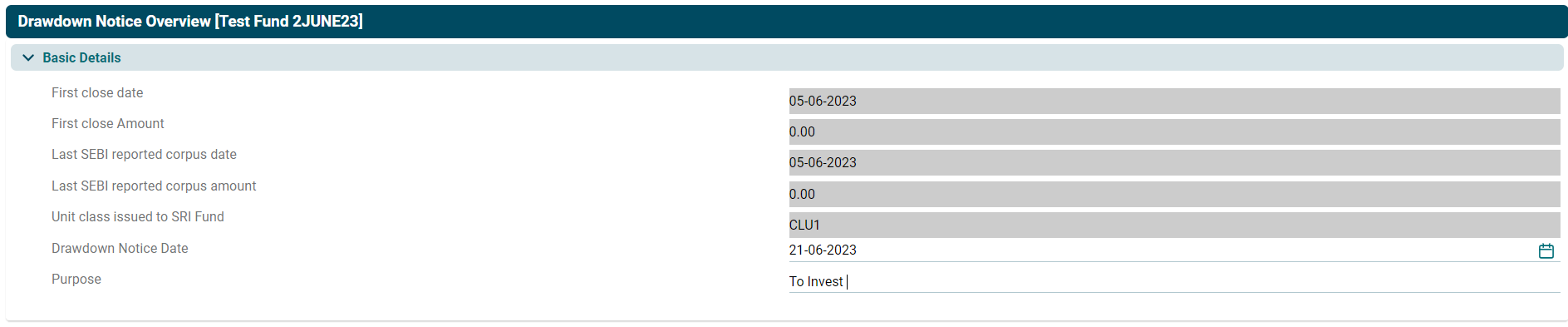
3. Section 1: Commitment Details panel records the amount committed by the investors and the percentage which is assumed as the Corpus amount. The details are pre-filled and you can only define the corpus percentage of the other FOF and percentage-based commitments.

4. Section 2: Drawable
Corpus Calculation panel is an auto-populated panel based on the previous panel
which calculates the maximum commitment from SRI Fund.

5. Section 3: Fund
commitment & Drawdown Details panel allows you to observe the total
commitment made by all the investors and interest held by them. Specify the amount being requested from this specific drawdown.

6. Section 4: Purpose of this
Drawdown panel allows you to segregate the total drawdown amount into total
investments and expenses, including management fees, organisational expenses, and
operating expenses. The expenses fields shall be auto-populated based on the
templates uploaded under section 6. It is discussed in details below.

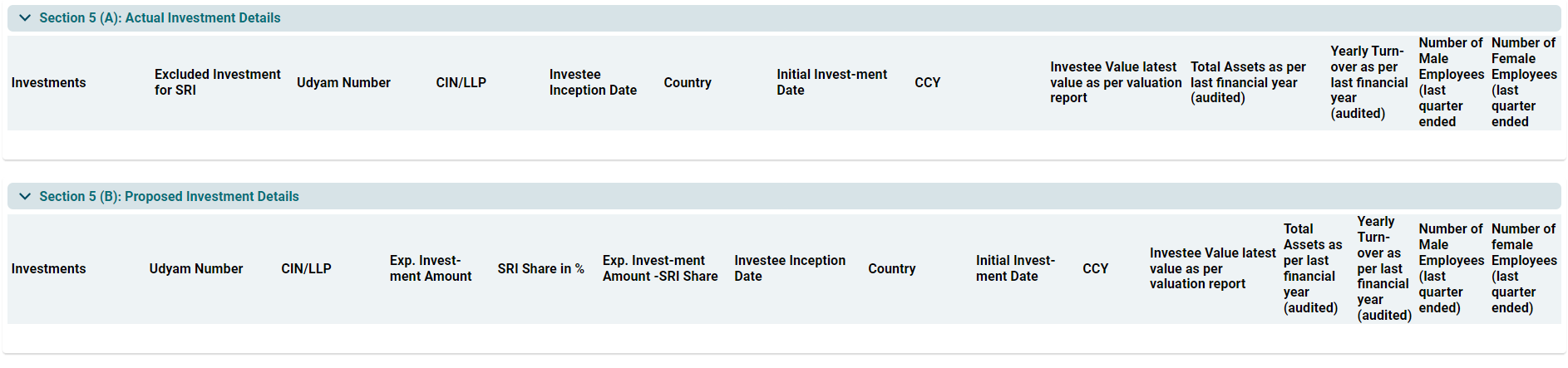
7. Section 5(A) : Actual investments details panel auto populates the details of investments done by an AIF in the portfolio companies. All the fields are auto populated from Portfolio Company module
8. Section 5 (B) Proposed Investment Details : Proposed investment details panel auto populates the details of investments which are proposed to be done by an AIF in the portfolio companies. All the fields are auto populated from Portfolio Company module.
9. Section 6: Documents
panel allows you to upload the expenses template which populate Section 4 and
other documents, including IC Meeting approval for Investment, MSME
Certificate, Drawdown Notice, and Other Docs.
To populate expenses under Section 4, follow the below steps:
- To download a template, click on one the template buttons in the top right corner of the panel. The file will download.
- For Operating
expenses, click on Expenses Template. For Set up Fee Expenses, click on the
Setup Template. For management Fee expenses, click on the MF Template. Specify
the expense details in the file.

- To upload a template
or other document, click on Add button in the top right corner of the panel.

- The field is
activated. Specify the template or document to be uploaded.

- Click on upload
icon (
 ) under the File Upload column. Choose the file.
 - Click on check button (
 ) to save.
10. A new entry is
created. After reviewing the drawdown notice, click on Submit button to submit
the drawdown notice for SRI approval.

11. To edit template details, click on the Edit icon
( ) in the Actions column. After making the changes, click on Check (
 )
button to save. refresh the page for the line entry to be updated.
)
button to save. refresh the page for the line entry to be updated.
12. To
delete template details, click on the Delete icon ( ) in the Actions
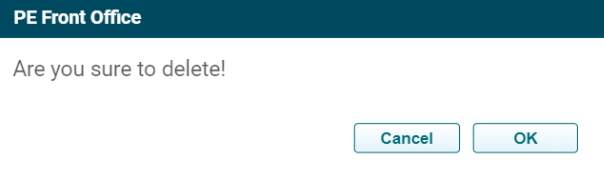
column. The delete window is displayed. Click OK to delete the member details.
) in the Actions
column. The delete window is displayed. Click OK to delete the member details.
13. To View details of a
Drawdown/ Distribution transaction, click on the View ( ) icon in the Actions
column. The Fund Details window is displayed.
) icon in the Actions
column. The Fund Details window is displayed.
14. If the fund reassigns the request, recheck and submit for SRI approval.
15. If the drawdown request is approved by SRI. details will get auto-populated and the status will change to ‘approved’. The user can view the details of approved request by clicking on view icon in the action column.
