
System Administration
Email Templates
By
creating email templates, you can send customized emails to all your contacts
in one go. It saves time and efforts every time you send an email. You can
create different templates for different purposes.
To
make them more creative and rich, you can include rich text, HTML content,
Images, etc., in your email templates. You can also design your own email
templates for regular newsletters, monthly updates, maintenance alerts, etc.
You
can create and save email templates in your repository to use them any time you
want to.
To
create an email template, follow the below steps:
1. Click on CRM
Settings icon ( ) in the upper right corner.
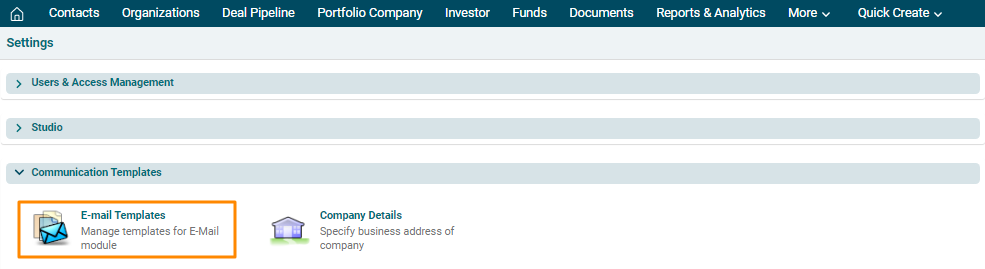
2. In the Communication
Templates panel, click on Email Templates.
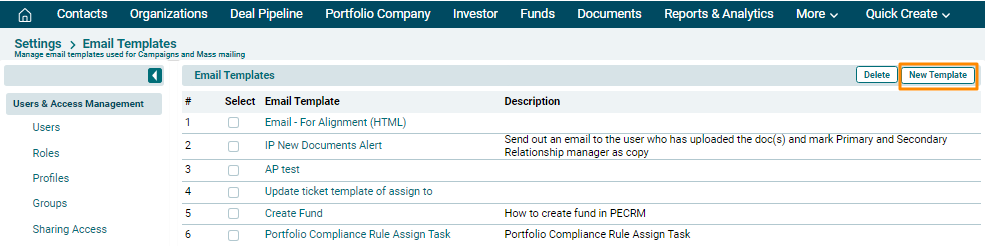
3. A list of emails will
be displayed. Click on New Email Template button in the top right corner of the panel.
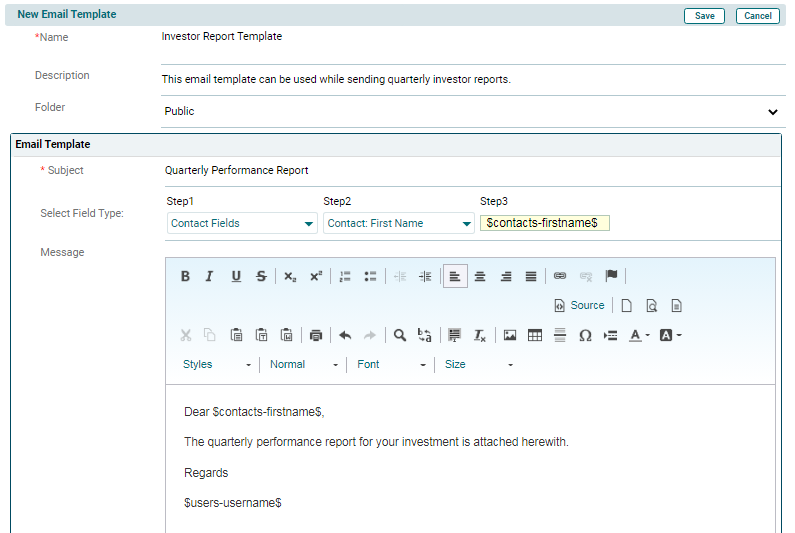
4. The New Email Template
window is displayed. Enter the following details:
- Name: Name of the
template.
- Description: Description
of the template.
- Folder: Whether it should
be saved in Public or Personal folder.
- Subject: Specify subject
of the email.
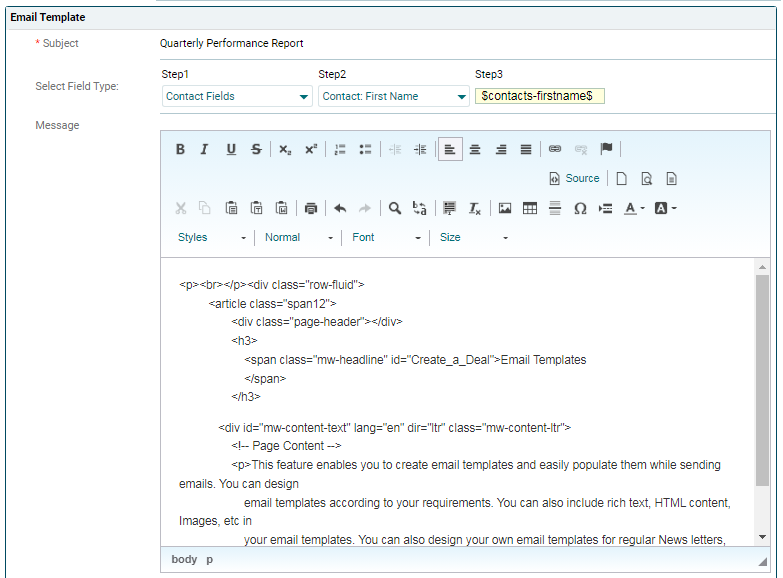
- Select Field Type:
Specify the field type. Select a module in Step ! and based on it, select Step
2. Step 3 is an auto-populated field.
- Message: Specify the
template body.
5. Click Save.
Inserting HTML Content
Email Templates enables you to send emails to your customers.
Hold on a sec! Will you let us send email templates we've spent time and money
to develop? Yes we do. Apart from boring, routine, plain-text emails, you can
also send colorful and visually appealing emails to thrill your customers. All
you have to do is — integrating your pre-designed HTML content in your email
template.
To enter HTML content,
follow the below steps:
1. Click on New Email Template button in the top right corner of the panel.

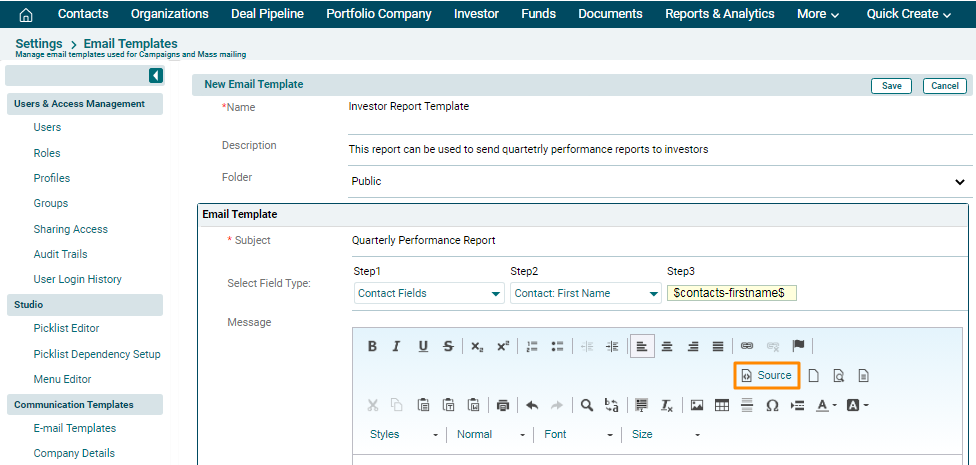
2. The New Email Template
window is displayed. Click Source button.
3. Paste your HTML
Content in the message body.
4. Click Save.