System Administration
Picklist Editor
As the name itself says,
Picklist is a drop-down field with list of options available, within which,
only one option can be selected. For instance, Job
Title in Contacts Module. Picklist Editor is used to
configure picklist values in different modules. It enables you to add new
values, rename, delete or rearrange existing picklist values. Picklist values
vary across roles — users under a role can only access picklist values assigned
to that role.
Get Started
You can create a custom
picklist field with desired set values on a selected module. While creating
records, select a value from the picklist to have it automatically inserted in
the field.
Working with Picklist Field
You can perform a wide
variety of operations on picklist fields like adding new values to existing
picklist field, modifying, deleting, rearranging existing values of a picklist
field. Additionally, you can also assign roles on selected picklist values.
To modify a picklist,
follow the steps below:
1. Click on CRM
Settings icon ( ) in the top right corner of the panel.
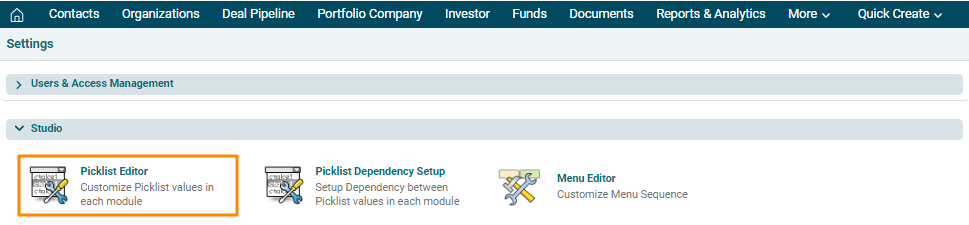
2. In the Studio panel,
click on Picklist Editor.
3. The Picklist Editor
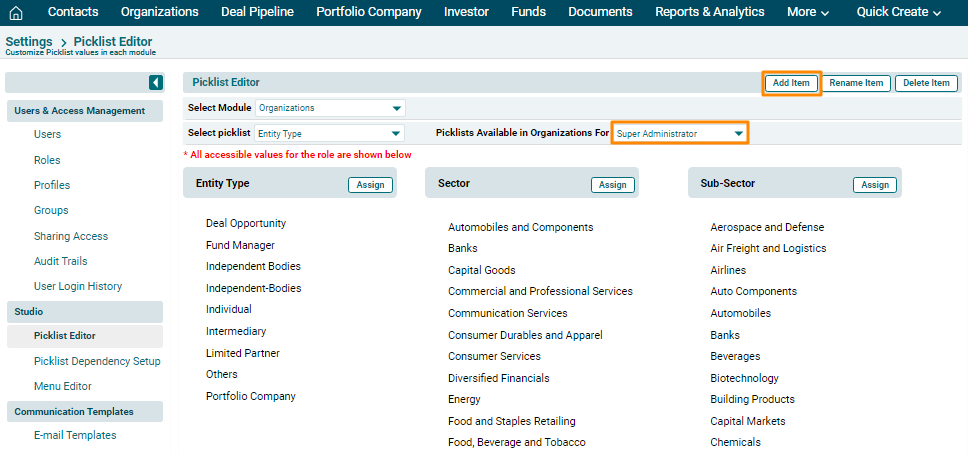
window is displayed. Specify a role for which you wish to change picklist,
specify a module and picklist. Click on Add Item to add a picklist value.
4. Select a Role. Enter
any new entries and click Save.

Assign Picklist Values
To assign picklist
values, follow the below steps:
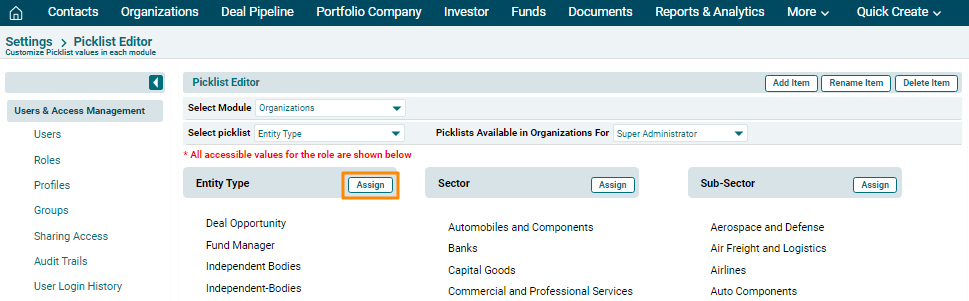
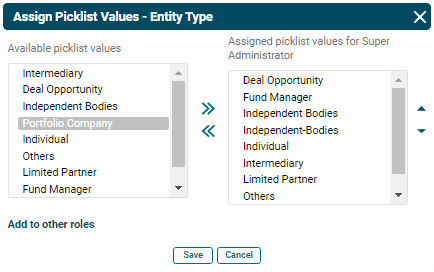
1. Click on Assign on top
right corner of the picklist panel for which you wish to assign entries.
2. Choose a picklist value
and use arrows to transfer them to either side. Click Save.
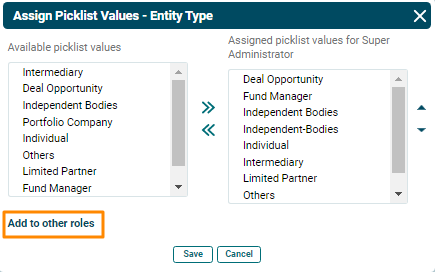
3. Click on Add To Other
Roles to add picklist value for different roles.
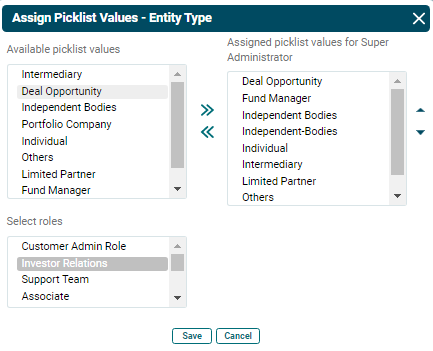
4. Select a Role and click
Save.
Rename Item
To rename an item, follow
the below steps:
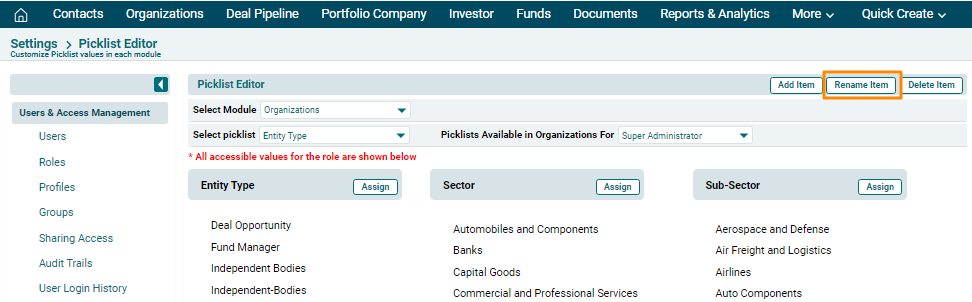
1. Click on Rename Item
button in the top right corner of the panel.
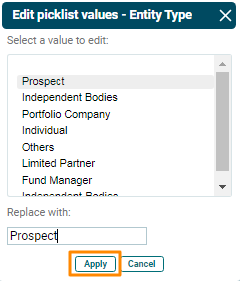
2. The Edit Picklist Values
window is displayed. Click on a value and enter the name you wish to replace it
with. Click Apply.
Delete Item
To delete an item, follow
the below steps:
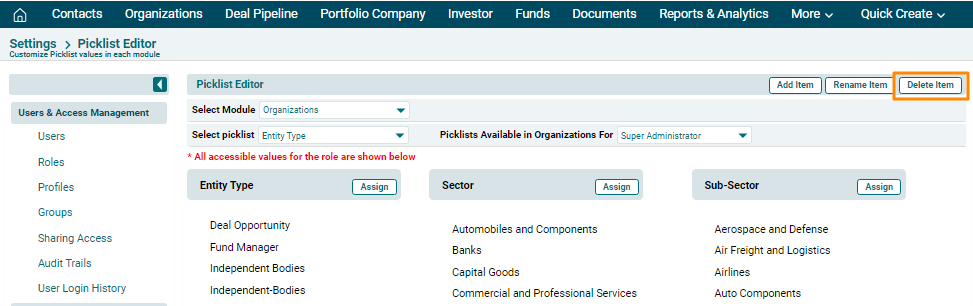
1. Click on Delete Item
button in the top right corner of the panel.
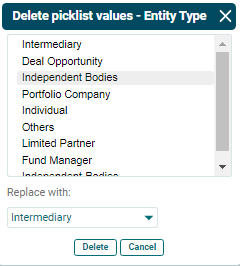
2. The Delete PIcklist
Values window is displayed. Click on a value and enter the name you wish to
replace it with. Click Delete.