Investor Management
Email Communications
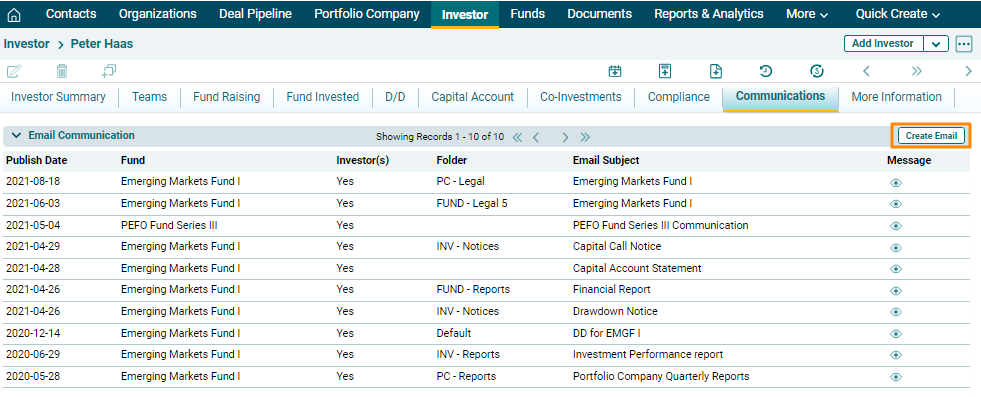
Email Communication panel allows you to send email communication to one or all of the investors from the system itself and keep a track a log of all emails sent.
To send an email, follow the below steps:
1. Click on the Create Email button in the top right corner of the panel.
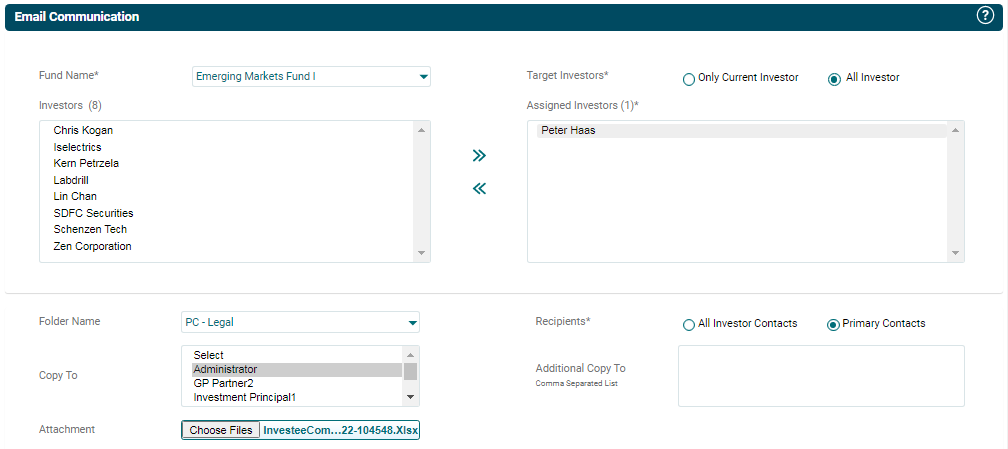
2. The Email Communication window is displayed. Enter the following details:
- Fund Name: Select the fund from the dropdown list.
- Target Investors: Choose an option, i.e., Only Current Investor or All Investor. The email will be sent only to the investor which you selected earlier from the Investor list view page, if you choose Only Current Investor. By choosing All Investors, email shall be sent to all investors related to the fund.
- Investors: The investors related to the fund are populated in the Investors field. Choose an investor. Click on the right-facing arrow button to select the investor.
- Folder Name: Select a folder name to attach any document.
- Recipients: Click on Primary Contacts if email is to be sent only to Primary Contacts of the selected investor. Click on All Investor Contacts, if an email is to be sent to all the investor contacts.
- Copy To: Choose a contact from the list if a copy is to be sent to a particular contact other than specified in the recipients.
- Additional Copy To: Enter the names of the contacts using a comma to send additional copies to additional contacts.
- Attach File: You can also attach the file through Attach File field. To attach a file, click on the Choose File button.
- Email Subject: Enter the email subject.
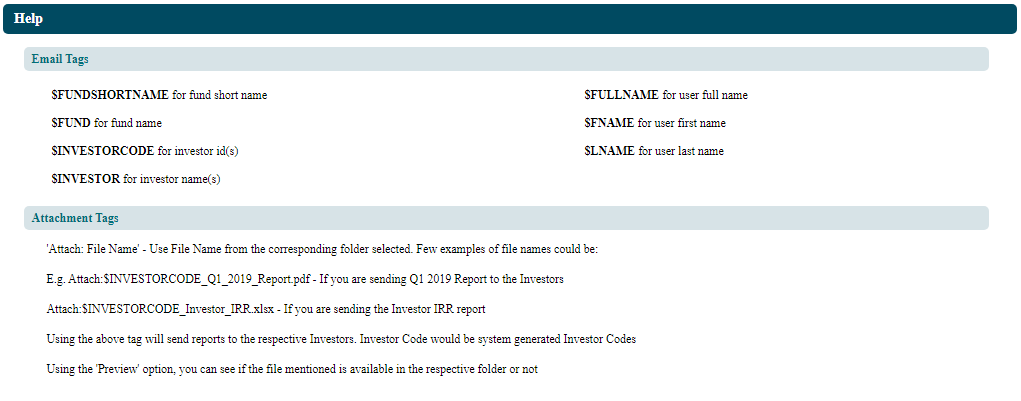
3. You can use tags when sending investor-specific emails to multiple investors and their contacts. Use a tag to replace it with investor-related information. E.g., you can use tag $Investor Code for investor ID. The software will pick the software ID and replace the tag with the related investor’s codes. You can also use Attachment tags to attach investor-specific attachments. To know more tags, click on Help ( ) icon in the top right corner of the Email Communication window. The Help window is displayed. You can pick the required tag from here and how to use it.
4. Enter the subject details. Click on Preview button to preview the email.
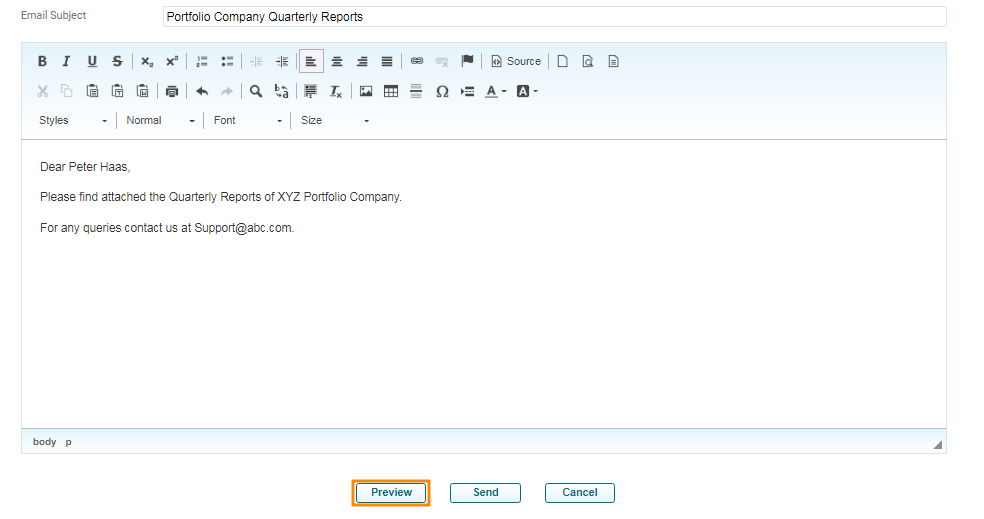
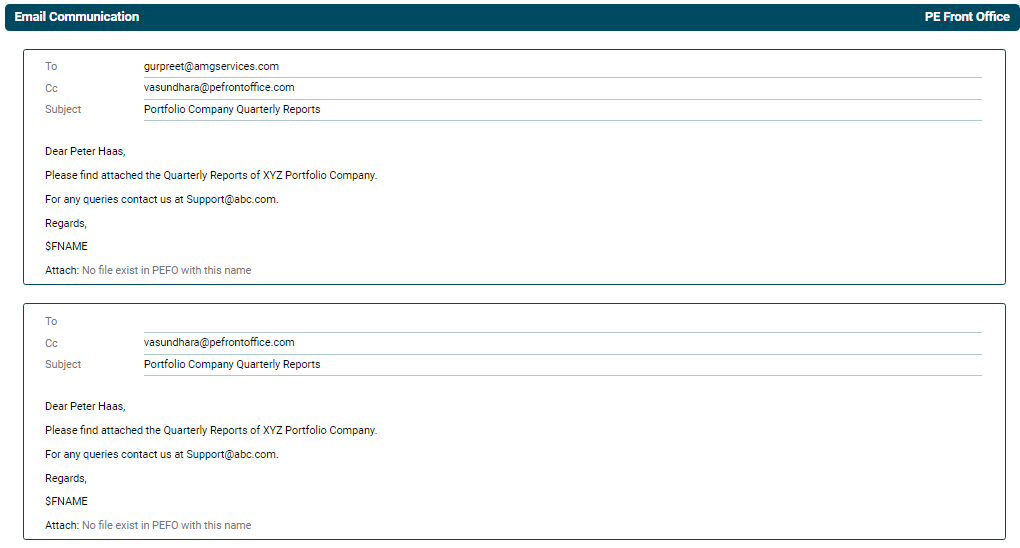
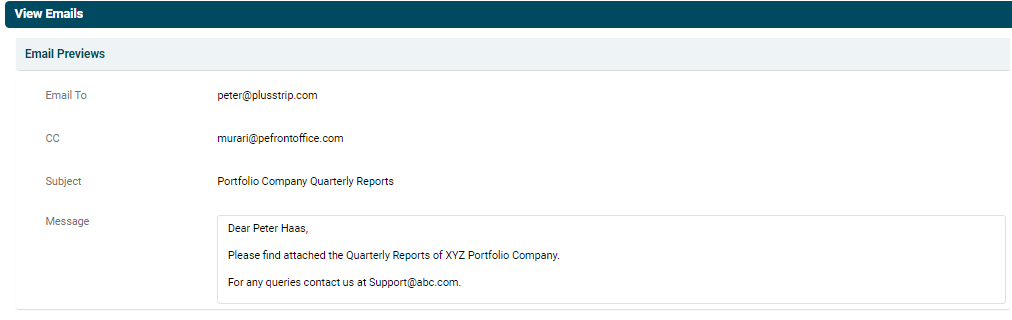
5. The View Emails
window is displayed. You can see how the email will look like.
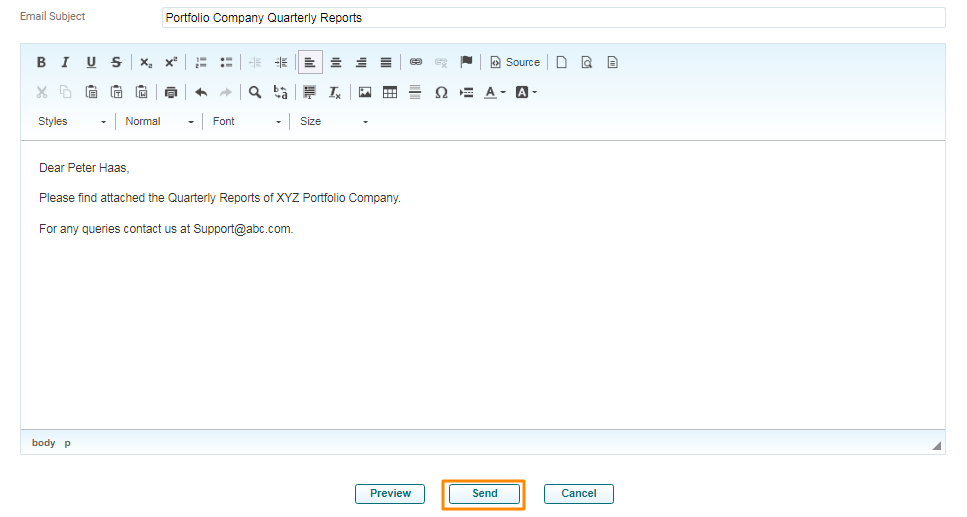
6. Click on Send button to send the email.
7. The sent email appears in the Email Communication panel. To view the sent mail, click on the View Message icon in the Message column.
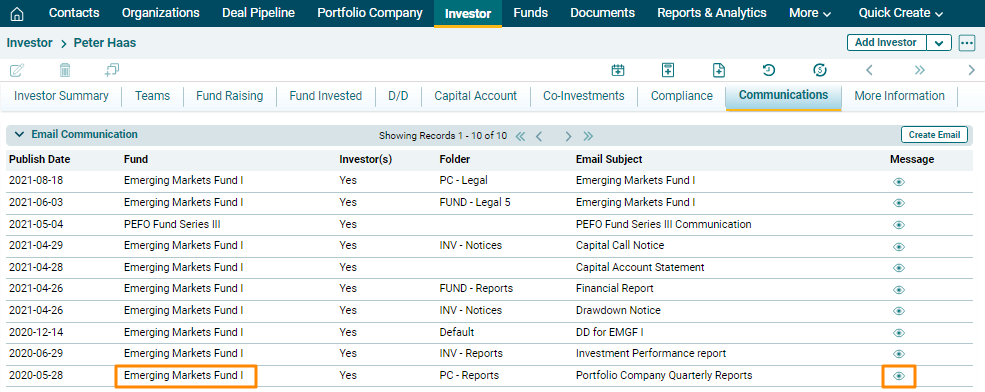
8. The Email Communication window is displayed.