Integration
Synchronize Contacts
PE Front Office allows you to sync your contacts between Gmail and PE Front Office.
Enable Synchronization
To enable synchronization, follow the below steps:
1. Navigate to More in the main menu. In Plugin, click on Google.
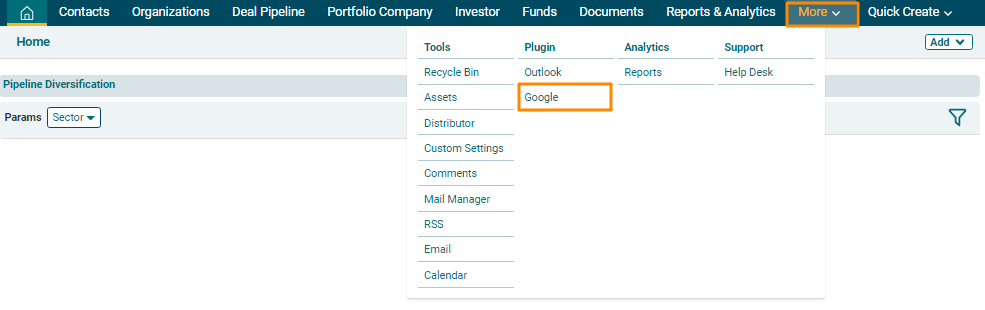
2. The Google Synchronize window is displayed. Click on Synchronize Settings in the top right corner of the panel.

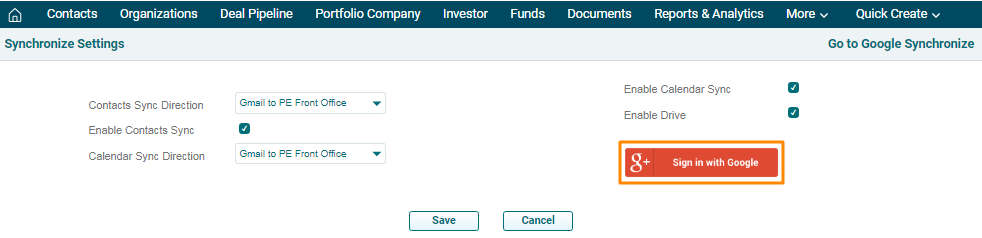
3. Click on Sign in with Google button to choose an email account. A new window is displayed. Choose your account.
4 Enter the following
details:
- Contacts Sync
Direction: Choose the direction of
contacts synchronization, i.e., Gmail to PE Front Office, PE Front Office
to Gmail, or Both.
- Enable Contact Sync: Check
the box to enable the sync.
5. Click Save to activate sync settings.
Synchronize Contacts
To synchronize contacts, follow the below steps:
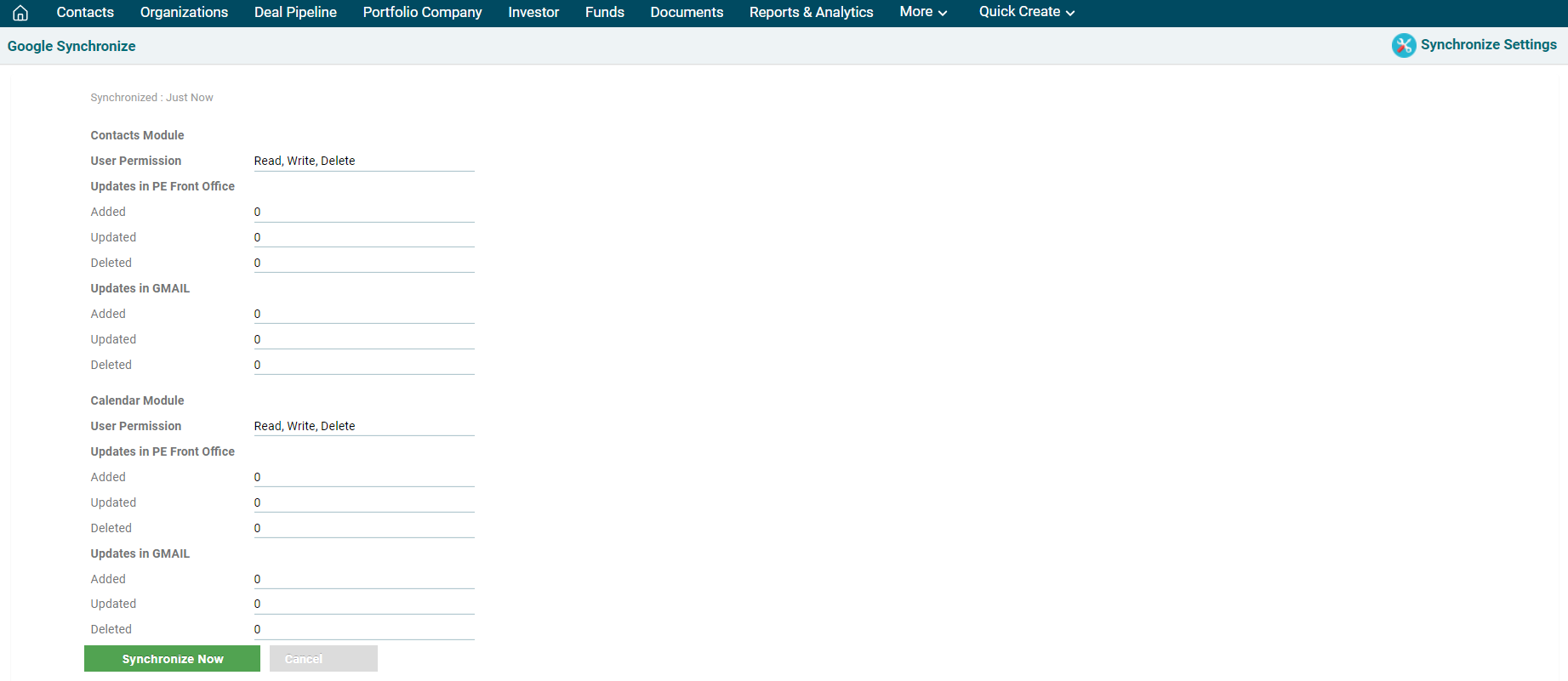
1. Click on Synchronize Now button to sync contacts.
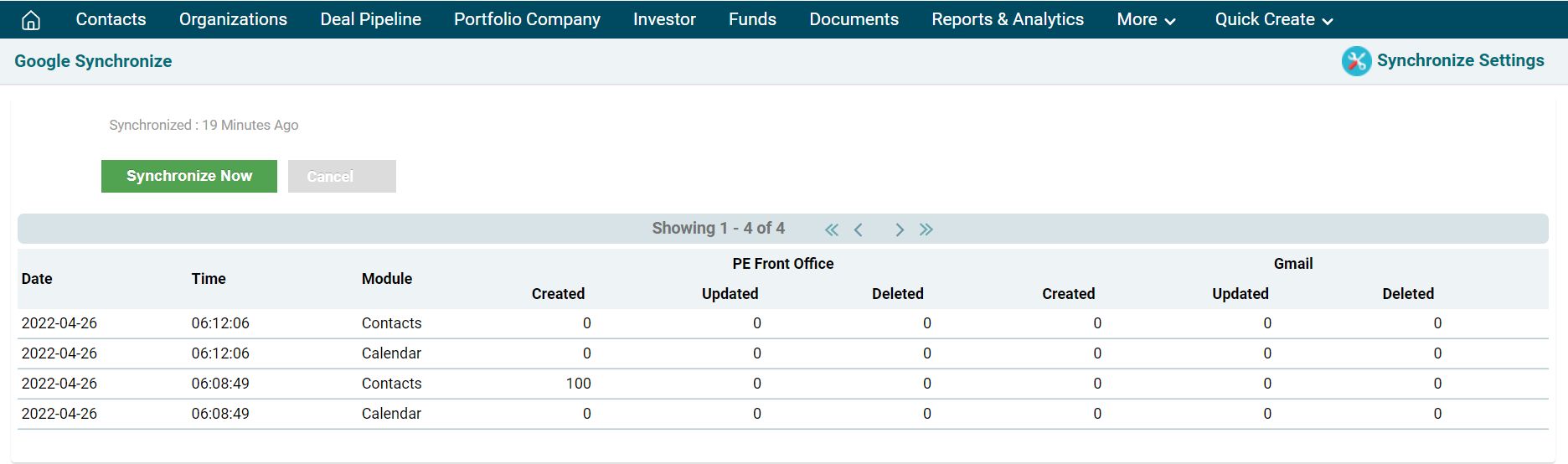
2. The status of synced contacts will appear. You can
review the sync history along with date, time, and module.