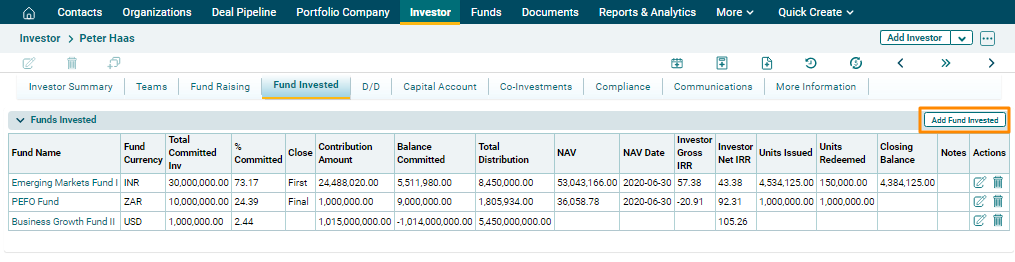
The Funds Invested tab allows you to capture details of the funds in which the investor has invested. The details included are:
- Fund Name: Displays the fund name in which investment has been made.
- Fund Currency: The field will automatically be populated from Funds Module.
- Total Committed Investment: Input the total fund committed by the investor in the fund.
- % Committed: Displays the percentage of investment committed in this fund. This is an auto-calculated field.
- Close: Input the investment stage, whether the investment made is at the initial stage, middle, or final.
- Contribution Amount: Displays the amount of contribution by the investor. This is an auto-calculated field.
- Balance Committed: Displays the balance amount that the investor is yet to commit. This is an auto-calculated field.
- Total Distribution: Displays total distribution that has been made to the investor from the fund. This is an auto-calculated field.
- NAV: Displays the net asset value of the investor. This is an auto-calculated field.
- NAV Date: Displays the date on which NAV was calculated. This is an auto-calculated field.
- Investor Gross IRR: Displays the gross IRR of the investor. This is an auto-calculated field.
- Investor Net IRR: Displays the net IRR of the investor. This is an auto-calculated field.
- Units Issued: Displays the units issued to the investor. This is an auto-calculated field.
- Units Redeemed: Displays units redeemed by the investor. This is an auto-calculated field.
- Closing Balance: Displays the closing balance of the investor. This is an auto-calculated field.
- Notes: Enter notes, if any.
To add funds invested, follow the steps below:
1. Click on Add Funds Invested button in the top right corner of the panel.
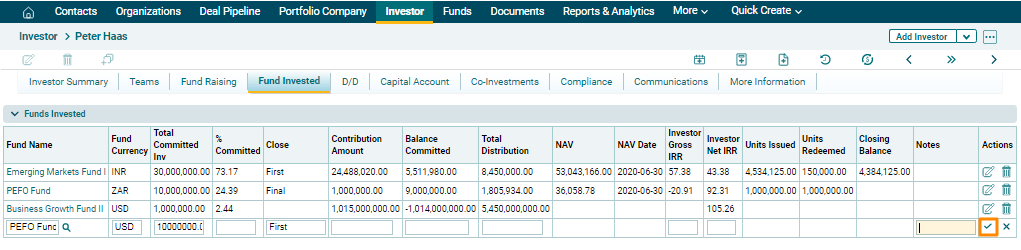
2. Update the details and click  ) button from Actions column to save.
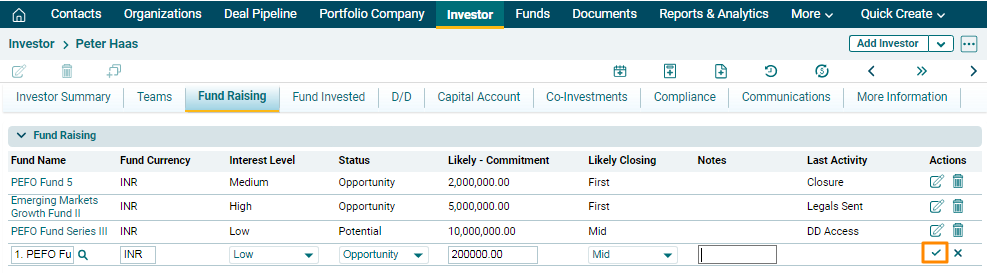
The Fund Raising panel contains information about potential investors who can invest in funds. The details included are:
- Fund Name: Displays the fund name in which investment has been made.
- Fund Currency: The field will automatically be populated from Funds Module.
- Interest Level: Select the investor’s interest level in the fund whether low, medium, or high.
- Status: Select the status of investment, whether an opportunity, has been committed or declined.
- Likely - Commitment: Input the potential amount of investment that the investor may invest.
- Likely Closing:
- Notes: Enter notes, if any.
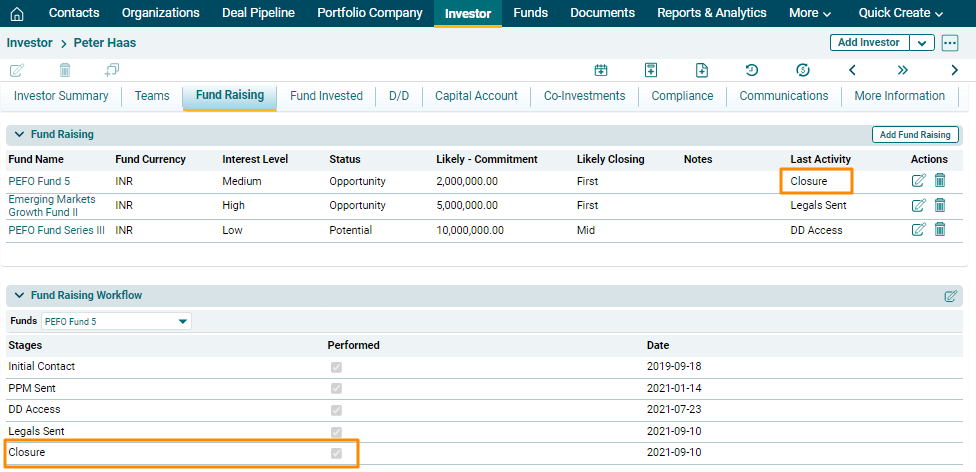
- Last Activity: This field will automatically be populated from Fund Raising Workflow.
To modify a fund, follow the below steps:
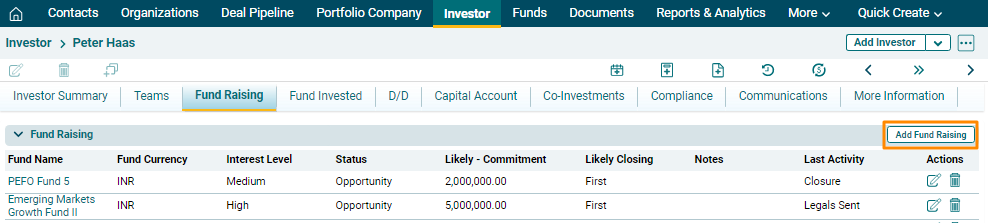
1. Click on the Add Fund Raising button in the top right corner of the panel.
2. The fields will be activated. Click on search ( ) icon.
The Funds window is displayed. Search for the fund name. Select the filter on the top left corner. Search results are displayed. Click on a Fund Name to add them as a member.

3. Click on check button to save the details.
Fund Raising Workflow
The Fund Raising Workflow panel allows you to capture the stages of fundraising that an investor goes through during the investment process in a fund.
To edit a workflow, follow the below steps:
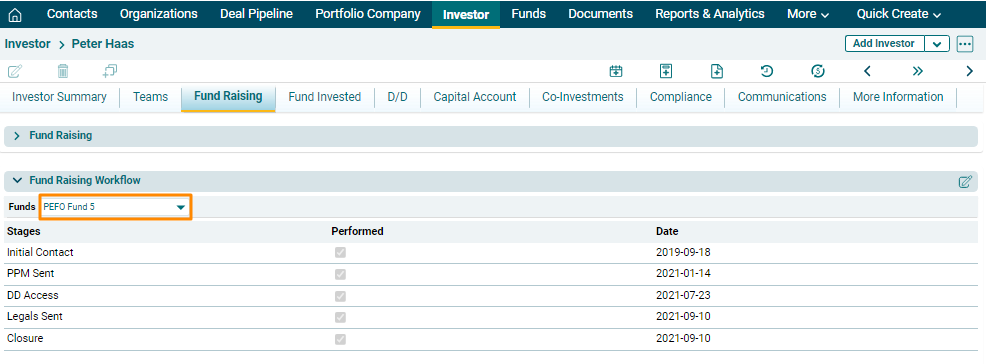
1. Select the fund for which you are updating the workflow.
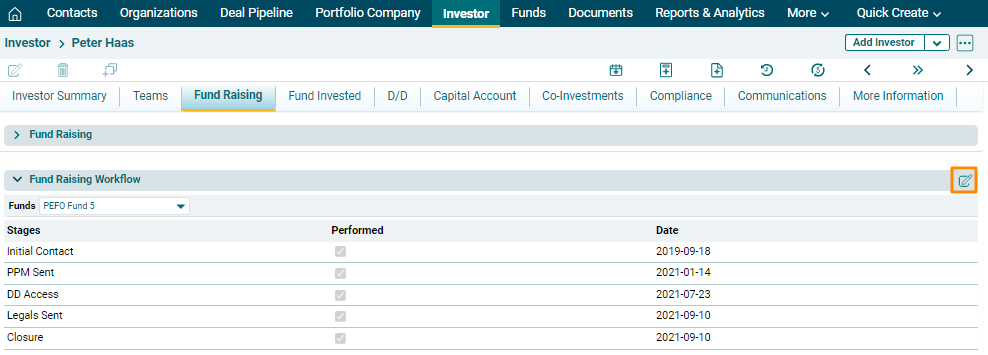
2. Click on Edit ( ) icon in the top right corner of the panel.
3. The fields will be activated. Click the checkbox against the stages which have been completed and enter the date on which it was completed. Click Save.
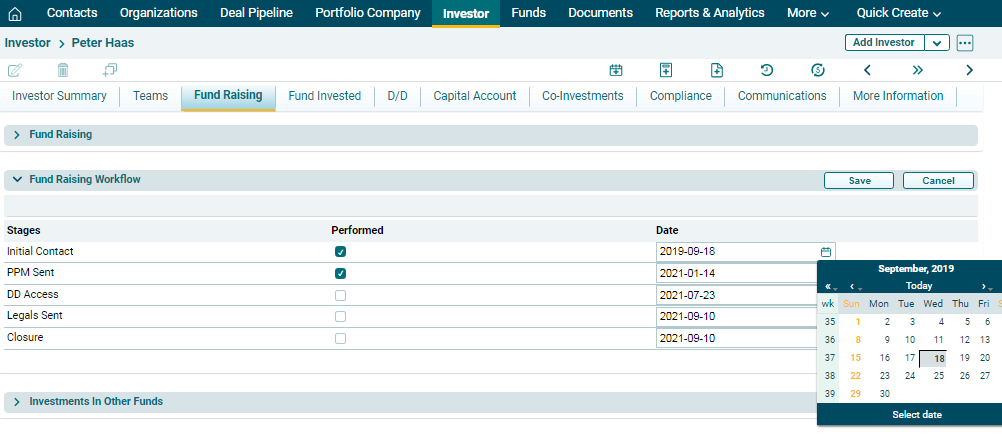
4. Based on the stage completed, the Last Activity column in the Fund Raising panel will be populated.