Document Management
LP Team
LP Team panel captures details of team members of limited partners associated with the investor. The details included are:
- Name: Name of the member.
- Role: Role of the member which includes Director, Lawyer, Accountant, and Other.
- Primary Contact: Check the box if the member is Primary Contact.
- Designation: Designation of the member.
- Email: Email of the member. This field will automatically be populated from Contacts Module.
- Phone: Contact number of the member. This field will automatically be populated from Contacts Module.
- Mailing List: Check the box if the member is to be included in the mailing list.
- Investor Portal Access: Displays if the member has the access to investor portal. This field will automatically be populated from Contacts Module.
- Last Login Date: Last login date of the member in the investor portal. This field will automatically populate.
- Login Valid Till: Date till the login shall be valid for the investor portal. This field will automatically populate.
To modify team member details manually, follow the below steps:
1. Click on the Add Member button in the top right corner.
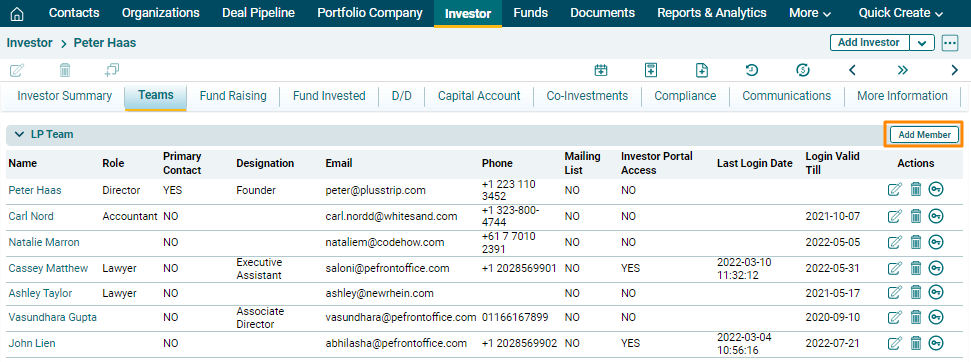
2. The field will be activated. Click on search ( ) icon to add an existing contact.
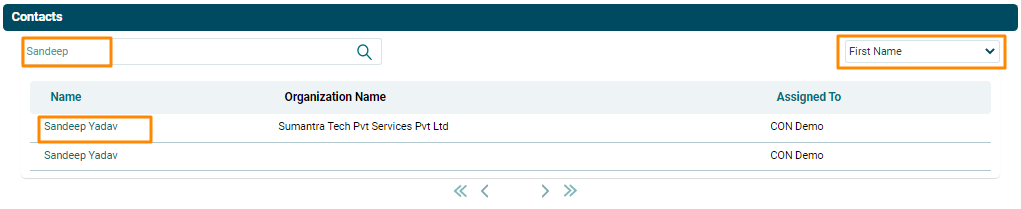
The Contacts window is displayed. Search for the contact name. Select the filter on the top left corner. Search results are displayed. Click on a Contact Name to add them as a member.
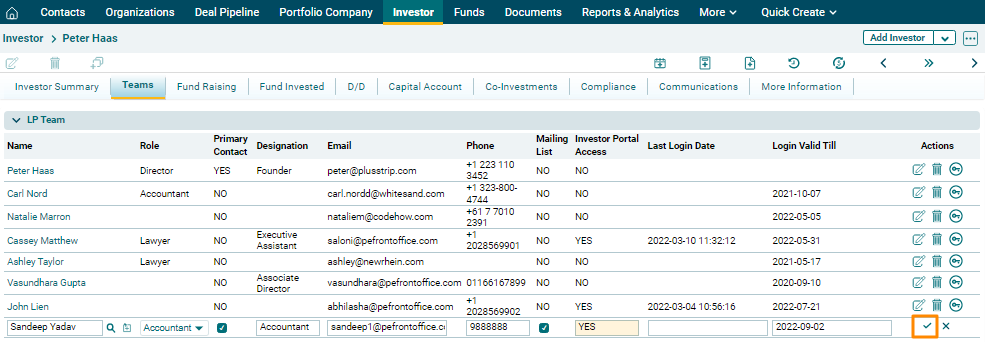
3. Update the details and click the Check button from Actions column to save.
4. To edit a team member’s details, click on the Edit icon ( ) in the Actions column. Update the details and click on Check (
 ) button to save.
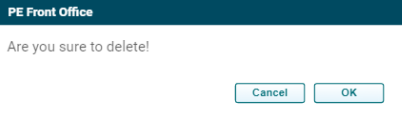
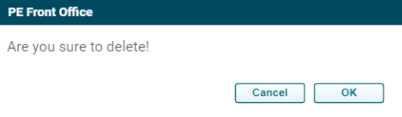
5. To delete a team member’s details, click on the Delete icon ( ) in the Actions column. The delete window is displayed. Click OK to delete the member details.
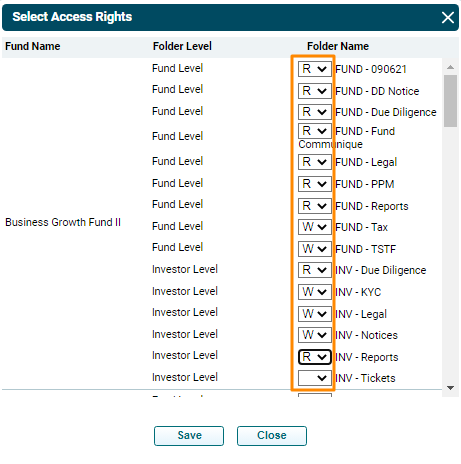
6. To give access rights to an investor portal member, click on the Access Rights icon ( ) in the Actions column. Select Access Rights window is displayed. Give Read or Write access for various folders at the fund level and investor level to the user. Click Save. The access rights are updated.
To import bulk team member details, follow the below steps:
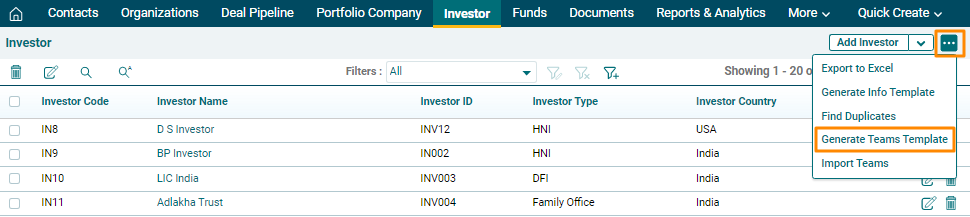
1. Click on the three dot menu next to Add Investor button. Click on Generate Teams Template.
2. The Excel File will download.
3. Enter the
Investor Code. Enter the Name from Contacts module. The rest of the
data flows from Master Data file. Save the file.
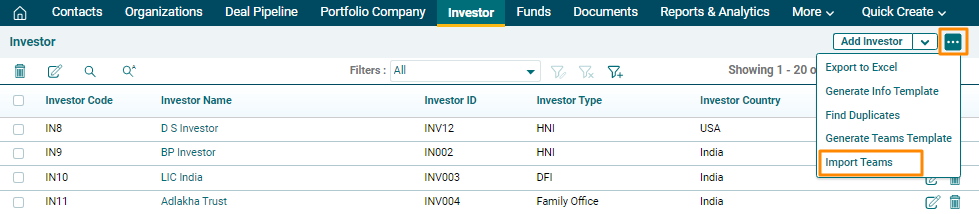
4. To import bulk
team member details, click on the three
dot menu next to Add Investor button. Click on Import Teams.
5. Click the Choose File button.

6. Choose the Investor Team template. Click Upload.

Advisors
Advisors panel captures details of advisor members associated with the investor. The details included are:
- Name: Name of the member from the Contacts Module.
- Role: Role of the member which includes Director, Lawyer, Accountant, Other, and Intermediary.
- Designation: Designation of the member.
- Email: Email of the member. This field will automatically be populated from Contacts Module.
- Phone: Contact of the member. This field will automatically be populated from Contacts Module.
To modify advisor details, follow the below steps:
1. Click on the Add Member button in the top right corner.
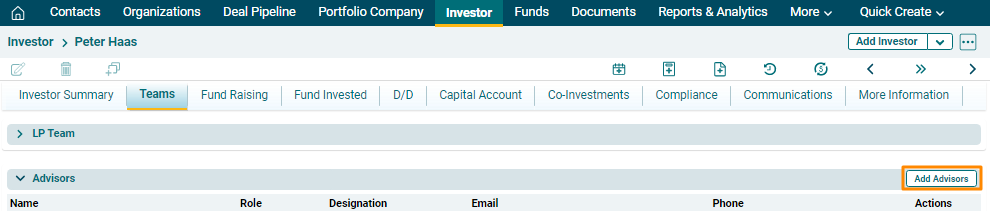
2. The field will be activated. Click on Search ( ) icon to add an existing contact.
The Contacts window is displayed. Search for the contact name. Select the filter on the top left corner. Search results are displayed. Click on a Contact Name to add them as a member.
3. Update the details and click the
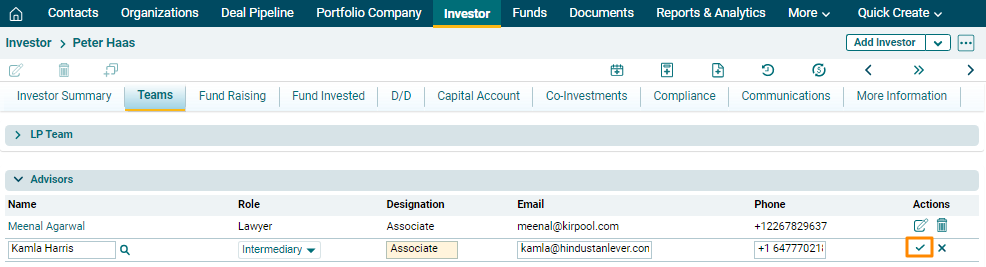
4. To edit a team member’s details, click on the Edit icon ( ) in the Actions column. Update the details and click on Check (
 ) button to save.
5. To delete a team member’s details, click on the Delete icon ( ) in the Actions column. The delete window is displayed. Click OK to delete the member details.