
CRM
Google/ One Drive Integration
This feature allows you to sync your contacts and calendar with Google Drive and One Drive.
Google Drive Integration
To integrate Google Drive, follow the below steps:
1. Click on Google Drive ( ) icon on the top of the tabs.
2. Click on Sign in with Google button to choose an email account. A new window is displayed. Choose the account.
3. The Synchronize Settings window is displayed. Enter the following details:
- Contacts Sync Direction: Choose the direction of contacts synchronization, i.e., Gmail to PE Front Office, PE Front Office to Gmail, or Both.
- Enable Contact Sync: Check the box to enable the sync.
- Calendar Sync Direction: Choose the direction of calendar synchronization, i.e., Gmail to PE Front Office, PE Front Office to Gmail, or Both.
- Enable Calendar Sync: Check the box to enable the sync.
- Enable Drive: Check the box to enable the sync.
4. Click Save to activate sync settings.
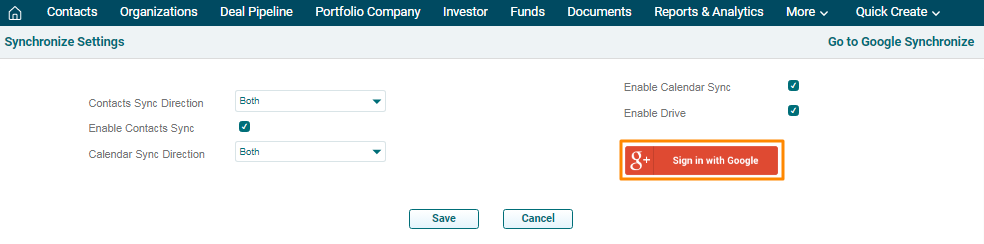
5. You can see your Google Drive folders listed here. Click on the Add icon to assign folder to the contact.
One Drive Integration
To integrate Google Drive, follow the below steps:
1. Click on One Drive ( ) icon on the top of the tabs.
2. Click on Sign in with Outlook button to choose an email account. A new window is displayed. Sign in to your Microsoft account.
3. The Synchronize Settings window is displayed. Enter the following details:
- Select Contact Folders: Select the contact folder from the list.
- Contacts Sync Direction: Choose the direction of contacts synchronization, i.e., Gmail to PE Front Office, PE Front Office to Gmail, or Both.
- Enable Contact Sync: Check the box to enable the sync.
- Calendar Sync Direction: Choose the direction of calendar synchronization, i.e., Gmail to PE Front Office, PE Front Office to Gmail, or Both.
- Enable Calendar Sync: Check the box to enable the sync.
- Select To Do Lists: Select the To Do folder from the list.
- To Do Sync Direction: Choose the direction of To Do synchronization, i.e., Gmail to PE Front Office, PE Front Office to Gmail, or Both.
- Enable To Do Sync: Check the box to enable the sync.
- Enable Drive: Check the box to enable the sync.
4. Click Save to activate sync settings.
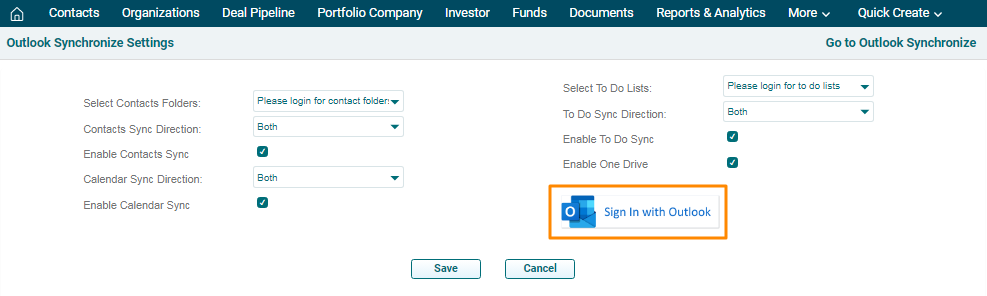
5. You can see your One Drive folders listed here. Click on the Add icon to assign folder to the contact