CRM
Creating An Event
Create an Event and send calendar invites for calls or meetings
to your internal team members or external contacts in their respective
mailboxes. To create an event, follow the below steps:
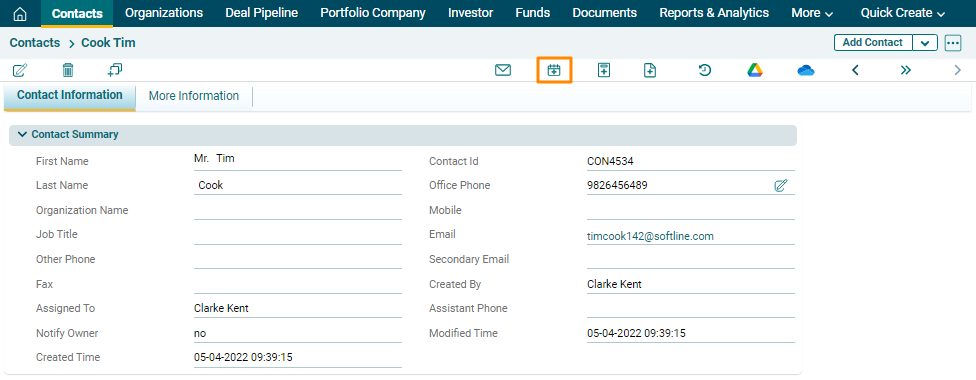
1. Click on a Contact for which event has to be created.

2. Click on the Add Event icon above the tabs.
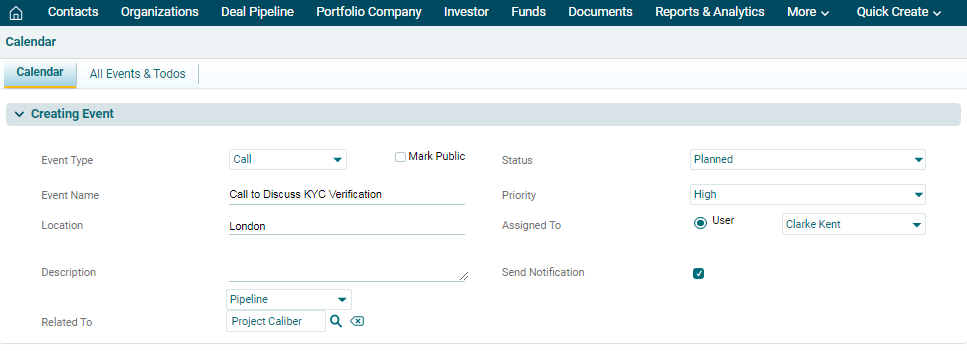
3. The Calendar window is
displayed. In Creating Event panel, specify the following details:
- Event Type: Whether
the event is a Call or Meeting
- Event Name: Name
of the event
- Location: Location
of the event
- Description: Description
of the event
- Related To: Event gets
related to the contact automatically
- Status: Select
the status of the event if it is held, canceled or planned
- Priority: Select
the priority of the event if it is a high-priority, low-priority or
medium-priority event
- Assigned To: Event gets
assigned to the user automatically
- Send Notification: Check
the checkbox if notifications are to be sent.
4. In the Schedule Event Panel, specify the
following details:
- Date: Choose Event
Start/End Date
- Send Reminder: Check
the box if reminders are to be sent to the team members
- Remind On: Choose
the date of sending a second reminder
- Repeat-
Check the box to repeat the reminder
- Repeat once in every: Set
the frequency of reminders

5. Internal Invitees panel allows you to send
invites to the internal team members. Click on the name you wish to add and
press the right-facing arrow button to select the user.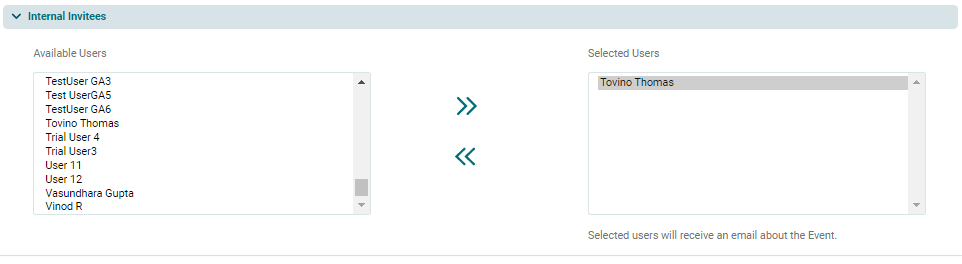
6. External Invitees panel allows you to add
external contacts apart from the internal team. Click on the search ( ) button
beside the Contact field. The Contacts window
is displayed. Check the box against the name of the desired contact. Click
on Select Contacts.
) button
beside the Contact field. The Contacts window
is displayed. Check the box against the name of the desired contact. Click
on Select Contacts.
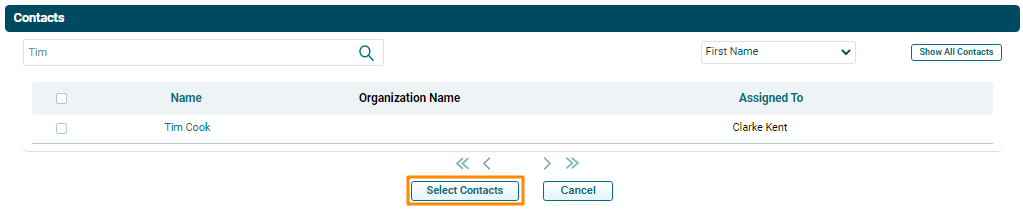
7. A pop up window will appear. Click Ok to
add the contact.
8. Click on Save.
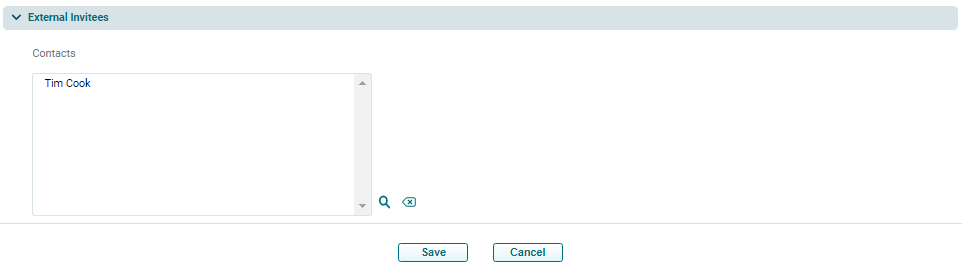
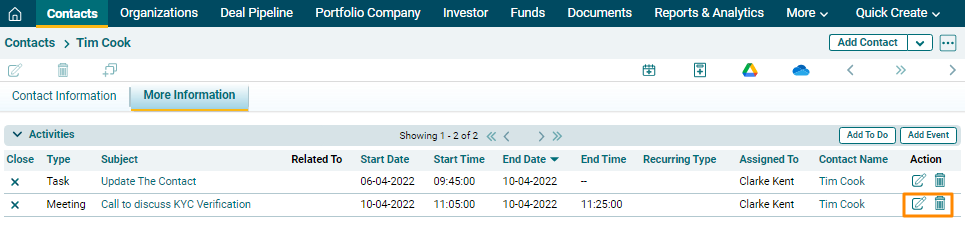
9. The Event will be listed in the Activities Panel under the More Information Tab. Click on the Edit or Delete icons to make changes.