
CRM
Add A Document
Upload required
documents in the PE Front Office Document Depository. You can upload them
directly from an Internal Drive, or provide an External URL from
which they can be accessed. You can group the files in various folders and
sub-folders.
To add a contact-related
document, follow the below steps:
1. Click on Contact
Name for which documents are to be uploaded.

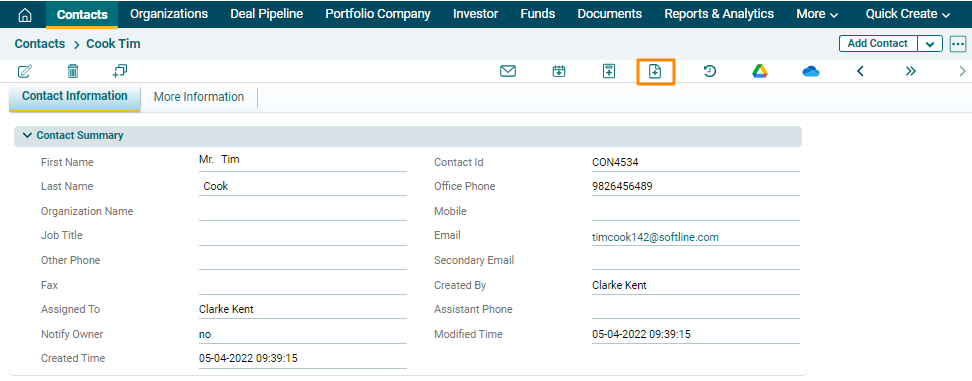
2. Click
on Add Documents icon above the tabs.
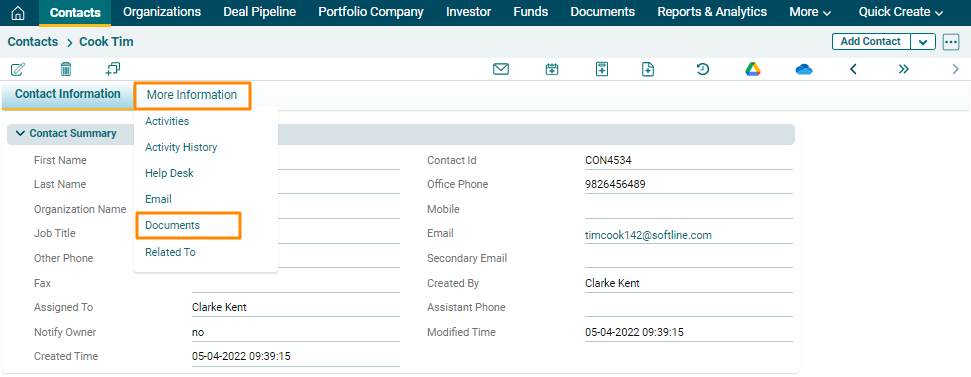
Alternatively,
navigate to the More Information Tab and Click on Documents.
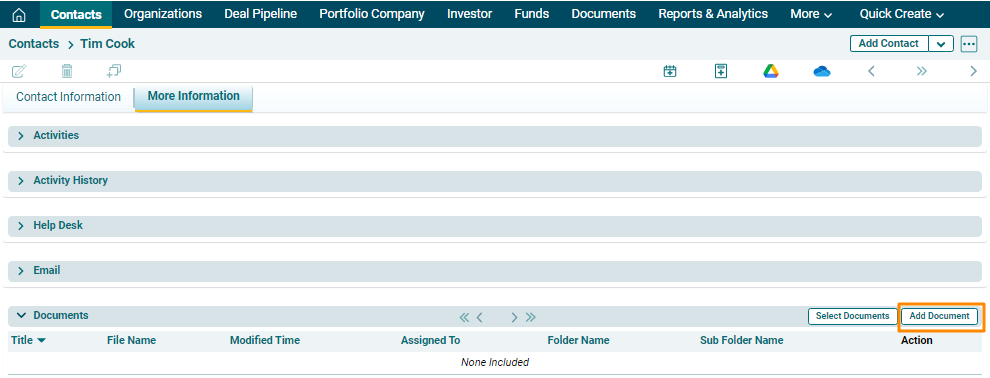
3. In the
Documents Panel, Click on Add Document button in the top right corner of the panel.
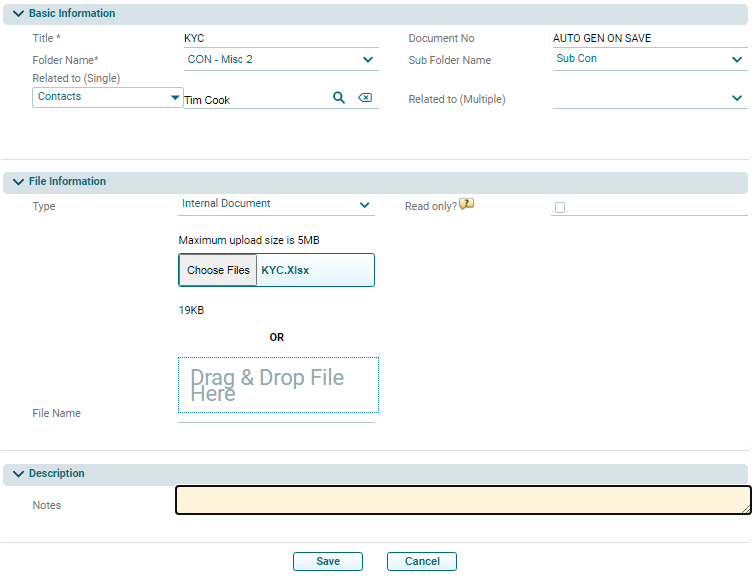
4. The Document Information window is displayed. Update the required details, attach the file and click on Save.
You can also tick the
Read Only check box for PDF files to restrict the download of the documents.
Quickly Add A Document
To quickly add a
document, follow the below steps:
1. Click Quick
Create in the main menu. Click on New Document.
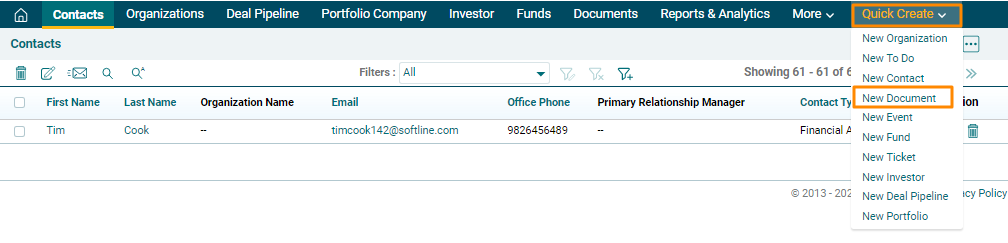
2. The Create Document window is displayed. Enter the basic details and click Save.