Getting Started
Enter The Valuation
Capture Valuation
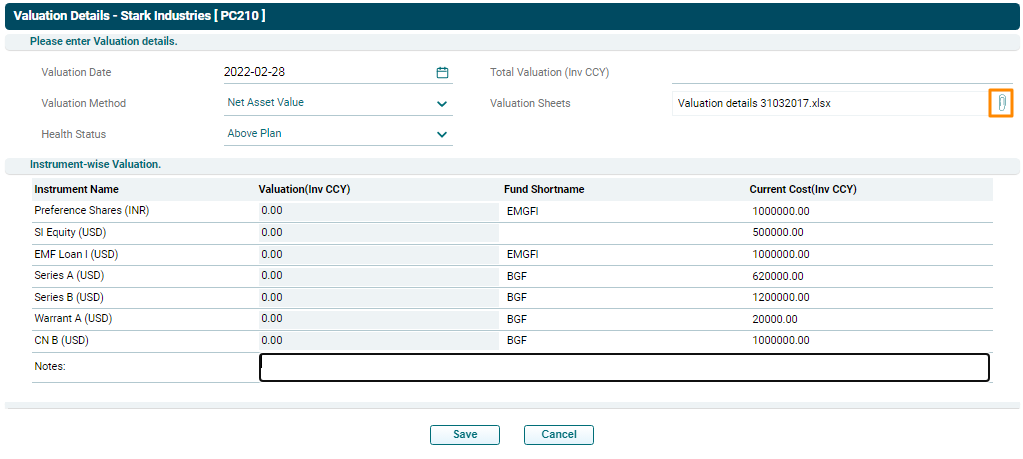
The Valuation panel allows you to capture the valuation details of the instruments. The details included are:
- Date of Valuation: Displays the date of valuation
- Valuation Method: Displays the method of valuation.
- Health Status: Displays whether the valuation is Above Plan, Below Plan or On Plan.
- Valuation Sheets: Displays the excel file containing valuation details. Click on the pin (
 ) icon in the corner of the field and choose the file.
 - Instrument-Wise Valuation: Displays the valuation details of the various instruments.
To modify valuation, follow the below steps:
1. Click on Add Valuation button in top right corner of the panel.

2. The Valuation Details window is displayed.
3. Update the details and click Save.
To bulk upload valuation details for instruments, follow the below steps:
1. Click on the down arrow button next to Add Valuation button. Click on Download Template.

2. The excel file will download. Enter the details and save the file.
3. To import bulk valuation for instruments, click on the down arrow button next to Add Valuation button. Click on Import Data.

4. Click the Choose File button.

5. Choose the valuation template. Click Upload.

6. The Valuation details will populate based on the uploaded template.
View Valuation Details
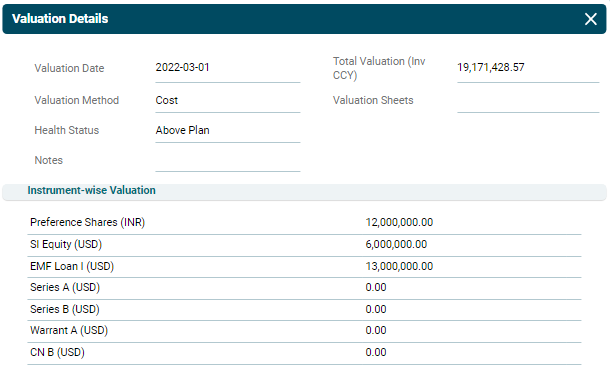
1. To view valuation details, click on the View ( ) icon in the Action column. The valuation window is displayed.
View History
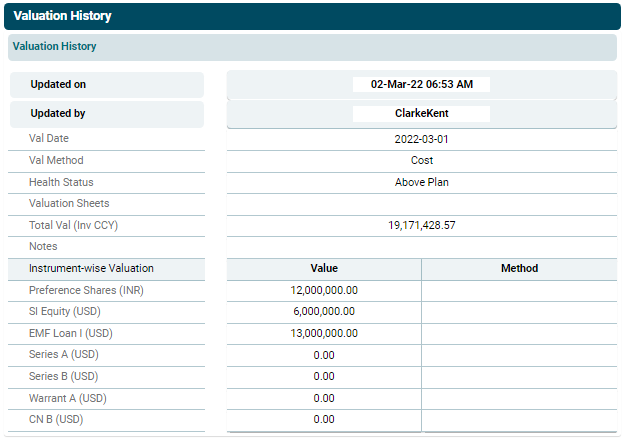
1. To view the changes made in the valuation, click on the View History ( ) icon in the Action column. The Valuation History window is displayed. You can view when were the changes made and by whom.