Reports And Analytics
Pipeline Movement Analysis
This functionality is only accessible to SRI
To view and download the Pipeline Movement Analysis report, follow the below steps:
1. Click on Reports and Analytics in the main menu.

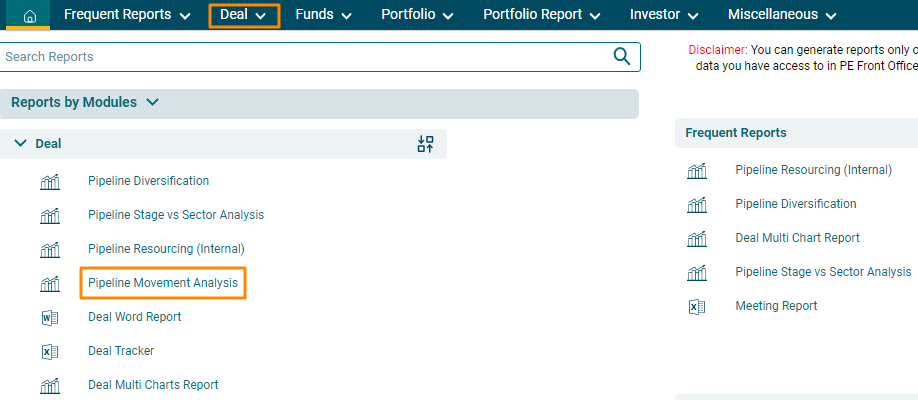
2. You can access the report from the dashboard by clicking Pipeline Movement Analysis in the Deal panel or from the Deal drop-down menu in the blue vertical bar.
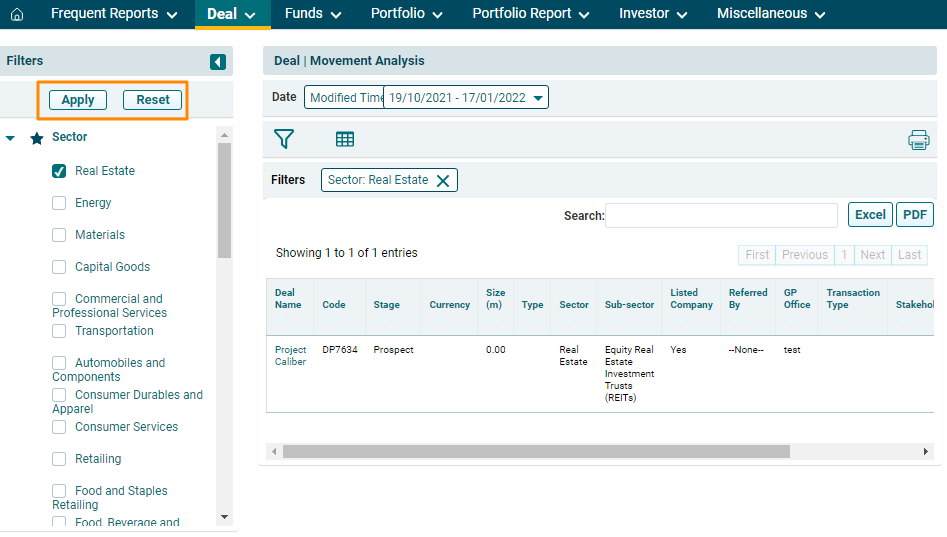
3. The Deal | Movement Analysis window is displayed. It displays the data in the funnel chart form based on the set parameters.
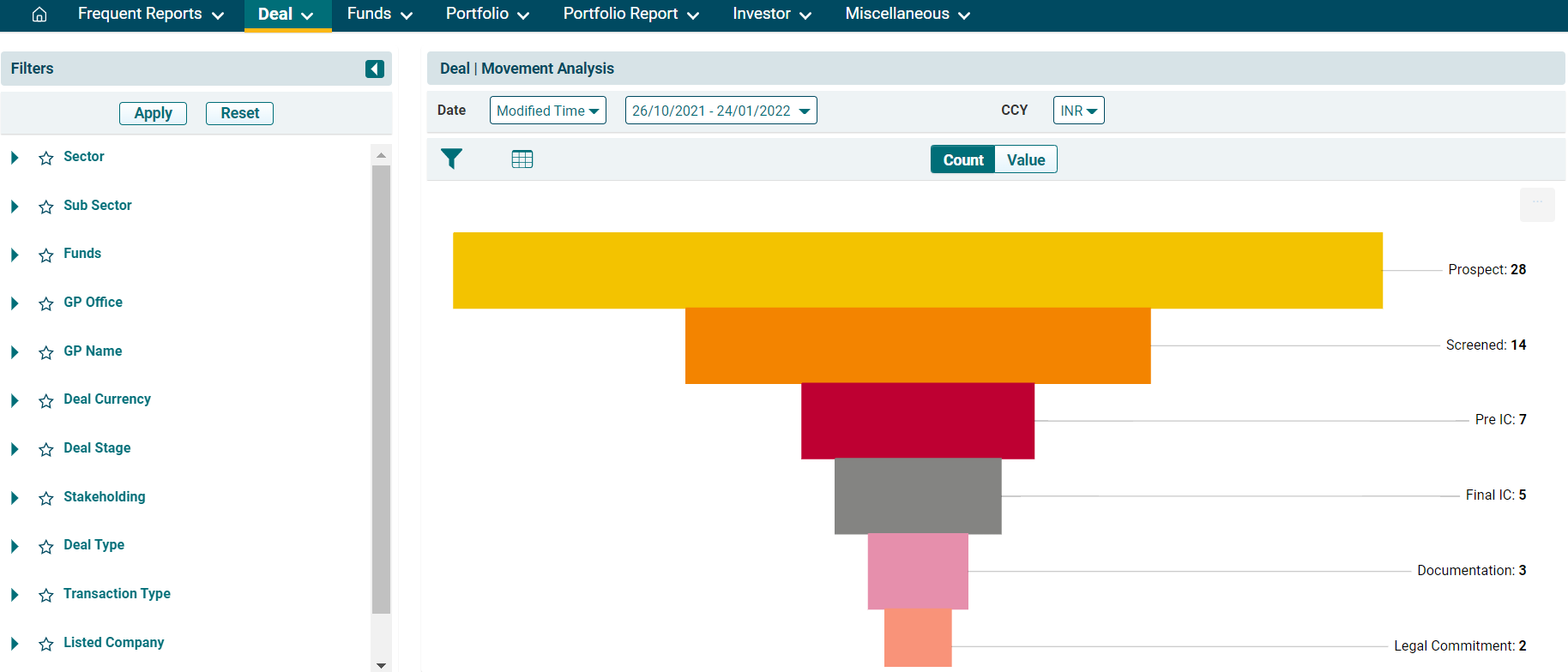
4. You can also view the report using various
- Date: To view the chart for a particular date range,
- Currency: To view the data based on different currencies.
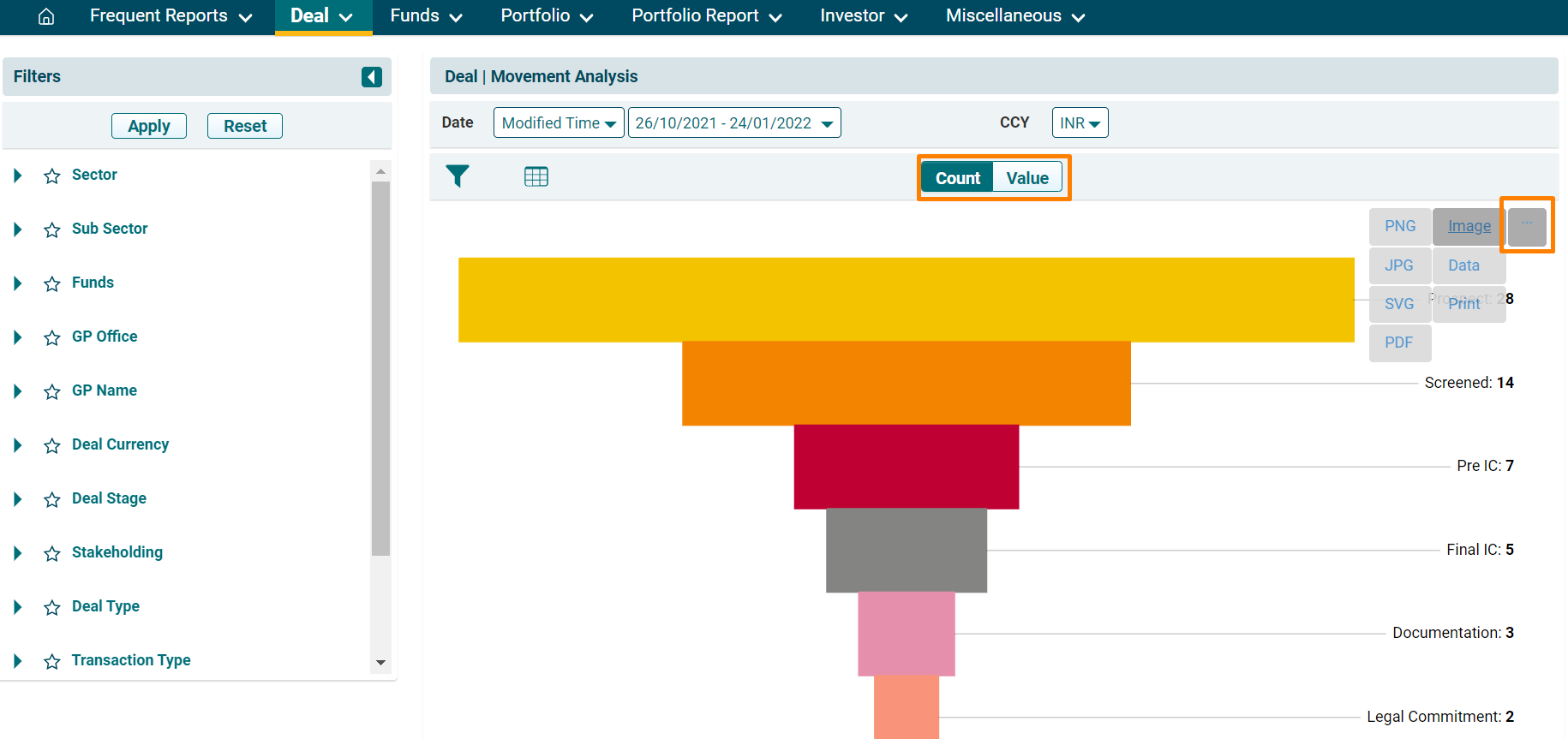
- Count/Value: The data can be viewed by Count or Value. The default setting is set on Count. If you wish to view the pipeline by Value, switch to Value.
You can view the funnel based on the changed parameters. You can download the funnel in various formats. Click on the gray square box button in the top right corner near the graph. The report can be downloaded in Image formats, such as PNG, SVG, JPG, etc. and Data formats, such as JSON, HTML, PDF, CSV, etc. Click on a format and the report will be downloaded.
5.
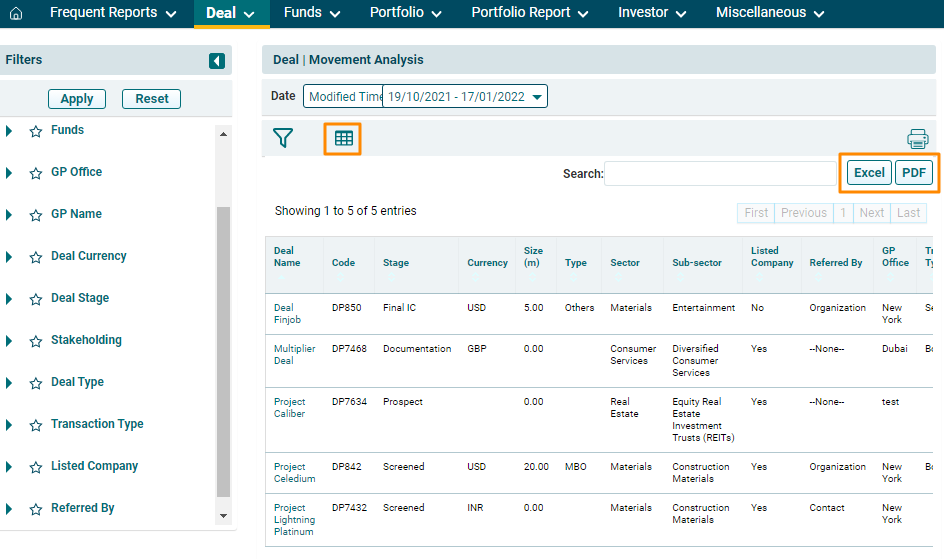
6. To further drill down into the analysis, use the additional filters on the left-hand side. Select a filter and click on Apply. To reset the filters, click Reset.