Reports And Analytics
Deal Pipeline Snapshot
This functionality is only accessible to SRI
To view and download multiple charts containing details of all the deals, you can use the Deal Pipeline Snapshot.
1. Click on Reports and Analytics in the main menu.

2. You can access the report from the dashboard by clicking Deal Pipeline Snapshot in the Deal panel or from the Deal drop-down menu in the blue vertical bar.
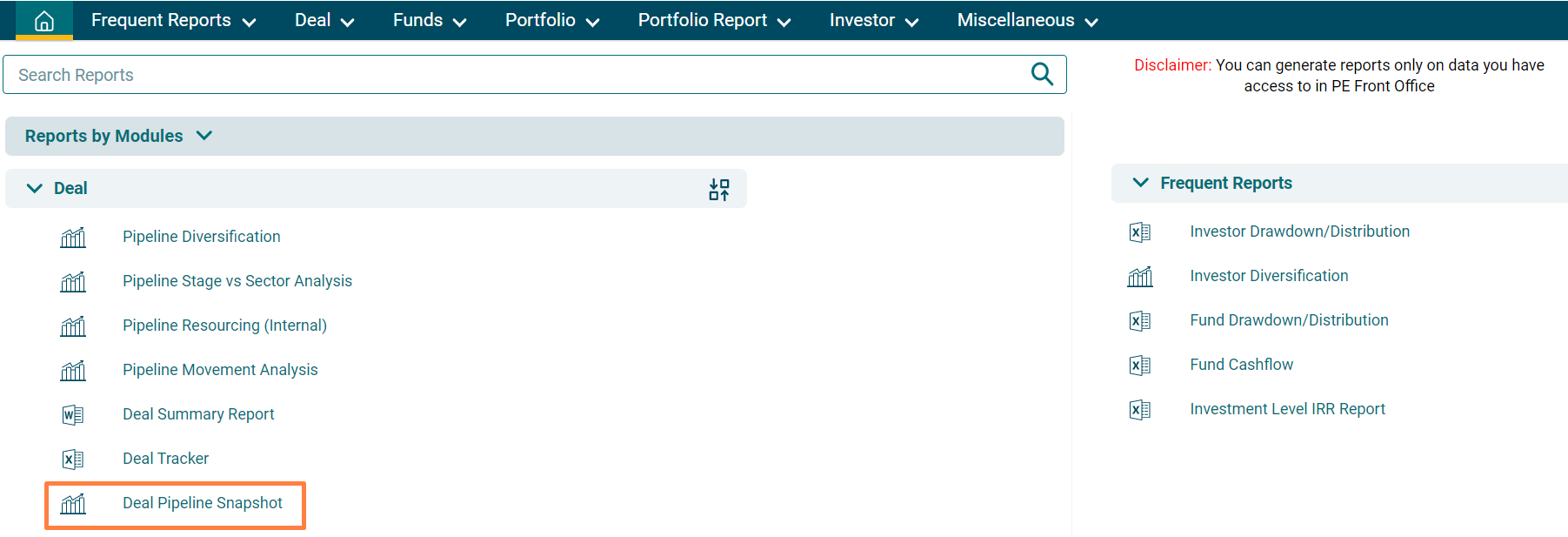
3. The Deal Pipeline Snapshot window is displayed. You can see six charts displayed. These charts depict:
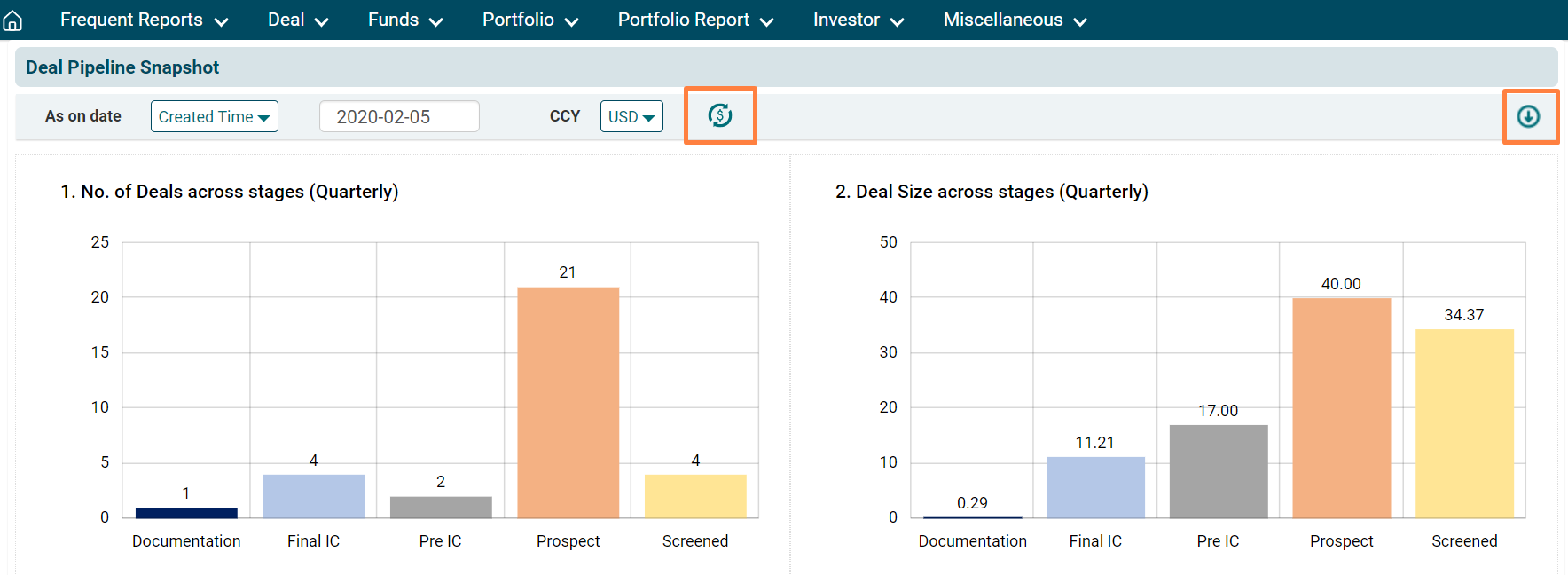
- No. of Deals across stages (Quarterly): Depicts different deals across various stages.
- Deal Size across stages (Quarterly): Depicts the Deal Size value across various stages.
- Industry Breakdown: Depicts the industries involved.
- Deals by source: Depicts the Deal origination source.
- No. of Deals Trend: Depicts the number of deals generated across quarters.
- No. of Deal Size Trend: Depicts the number of Deal Size generated across quarters.
You can also view the report using various filters available above the graph.
- Date: To view the chart for a particular date range, select the date and specify the filter for data based on Created Time, Modified Time, and Date Opened.
- Currency: To view the data based on different currencies.
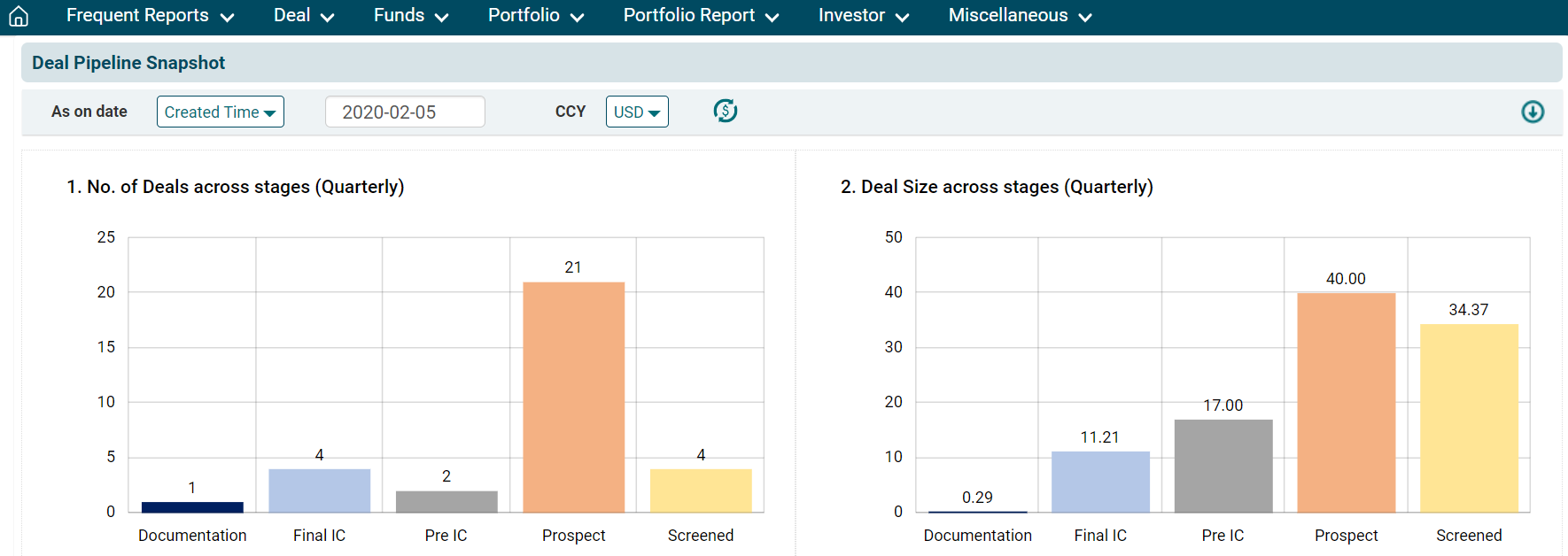
4. Click on Refresh Data icon after applying the filters. Click on Save as PDF icon to download the report. The file will be downloaded.