Custom Settings
Folder Management
You can add folders and sub-folders in PE Front Office to manage your documents.
To create a folder, follow the below steps:
1. In Custom Settings, click on Folder Management.
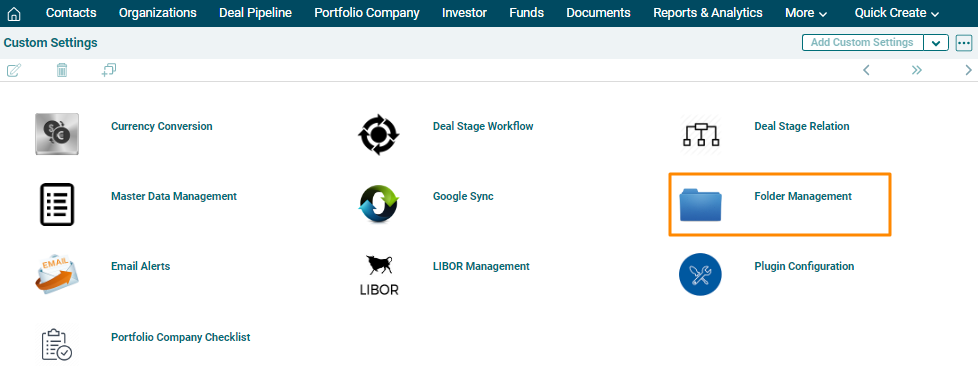
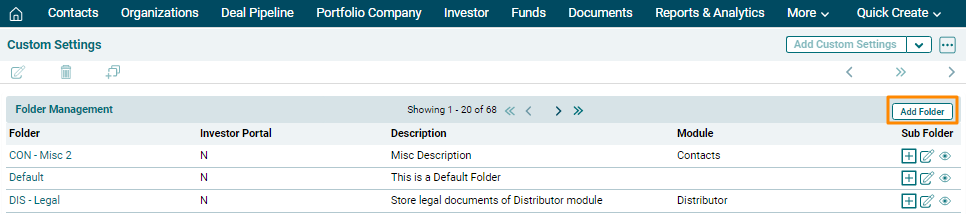
2. The list of folders is displayed. Click on Add Folder button in the top right corner of the panel.
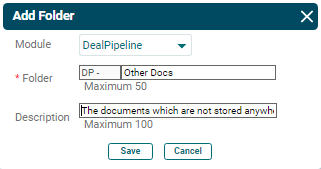
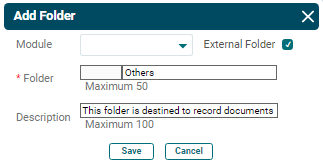
3. The Add Folder Window is displayed. Choose a module from the dropdown. Based on the module, the folder prefix is auto-populated, i.e., DP for Deal Pipeline. Enter the description. Click Save.
4. To create an external folder, i.e. a default folder which is not specific to any module, click the External Folder checkbox. An external folder is not visible in any module.
To add a sub-folder for an existing folder, follow the below steps:
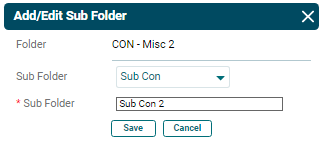
1. Click on Add/Edit ( ) icon in the Sub-Folder column. The Add/Edit
Sub Folder window is displayed. Enter the following details.
) icon in the Sub-Folder column. The Add/Edit
Sub Folder window is displayed. Enter the following details.
- Folder Name: This is an auto-populated field.
- Sub Folder: Choose a sub folder name if you wish to create a sub folder within an existing sub folder. System doesn’t allow adding a duplicate folder or sub folder with same name.
- Sub Folder Name: Specify the sub folder name. Special characters are not allowed in sub folder name.
2. Click Save.
To edit a sub folder, click on the Edit icon
(.png) ) in the Sub Folder column. Update the details and click Save.
) in the Sub Folder column. Update the details and click Save.
To view sub folder in a folder, click on the View icon ( ) in
the
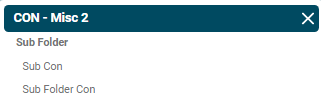
Sub Folder column. The [Folder Name] window is displayed with sub folders’ name.
) in
the
Sub Folder column. The [Folder Name] window is displayed with sub folders’ name.