Custom Settings
Email Alert
You can set email alerts in PE Front Office to send emails if a payment is nearing payment date or is overdue. The details included are:
- Alert name: Displays the email alert name.
- Frequency: Displays the frequency of the alert.
- Email Template: Displays if there is an email template uploaded.
- Recipient: Displays whether the alert is
sent to Internal Team, External Team, or both. Email alert will be sent to the
Internal Team when user added in Portfolio Company -> Additional Information
-> Asset Management Team panel. Email alert is sent to the users whose Email
Alert is value is Yes in Asset Management Team panel, if Email Alert value is No
then email is not sent to that user. Email alert will be sent to the External
Team when contact added in Portfolio Company -> Additional Information ->
External Team panel. Email alert is sent to the contact whose Email Alert value
is Yes in External Team panel, if Email Alert value is No then email is not
sent to that contact.
- Active: Displays whether the email alert is active or not presently.
To add an email alert, follow the below steps:
1. In Custom Settings, click on Email Alerts.
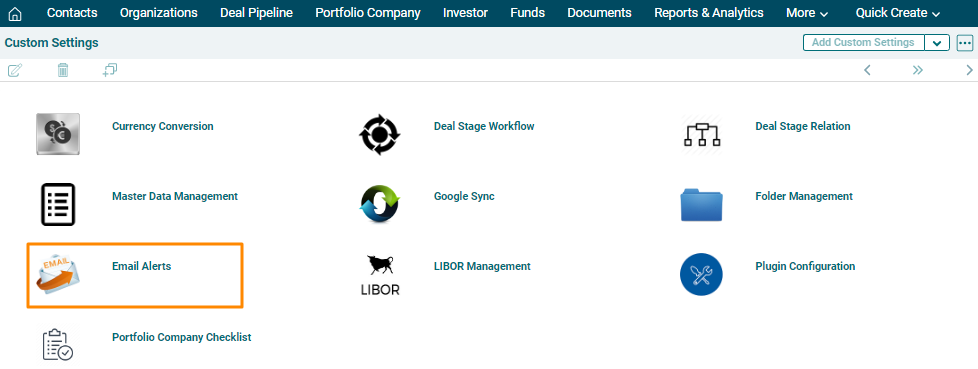
2. Click on Add button in the top right corner of the panel.
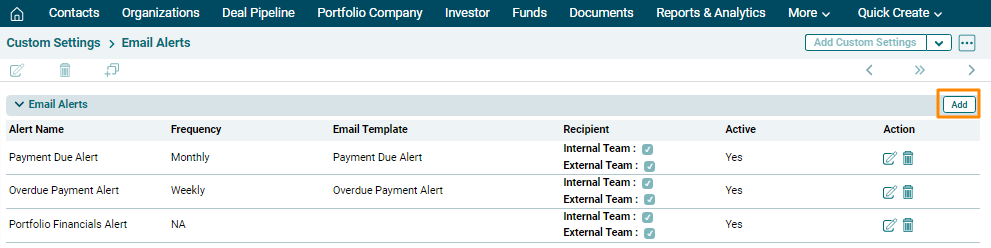
3. The field will be activated. Update the details and click the Check button to save.
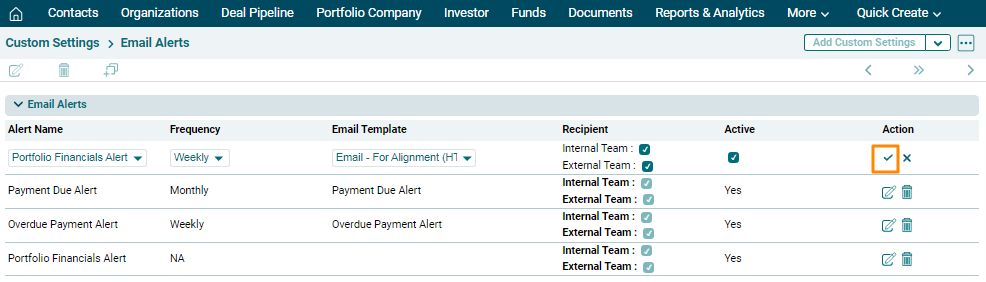
4. To edit an alert, click on the Edit icon ( ) in the Action
column. Update the details and click Save.
) in the Action
column. Update the details and click Save.
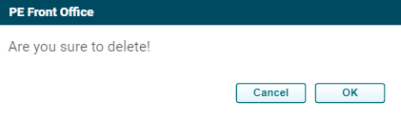
5. To delete an alert, click on Delete icon ( ) in the Action column. The Delete window is
displayed. Click OK to delete the alert.
) in the Action column. The Delete window is
displayed. Click OK to delete the alert.